Tag: Backup
Cin7 Core down – How to Easily Backup and Download all your Cin7 Core Data – Video



How to Backup Your Sensitive Cin7 Core Data
1. Access Settings and Automation 0:01
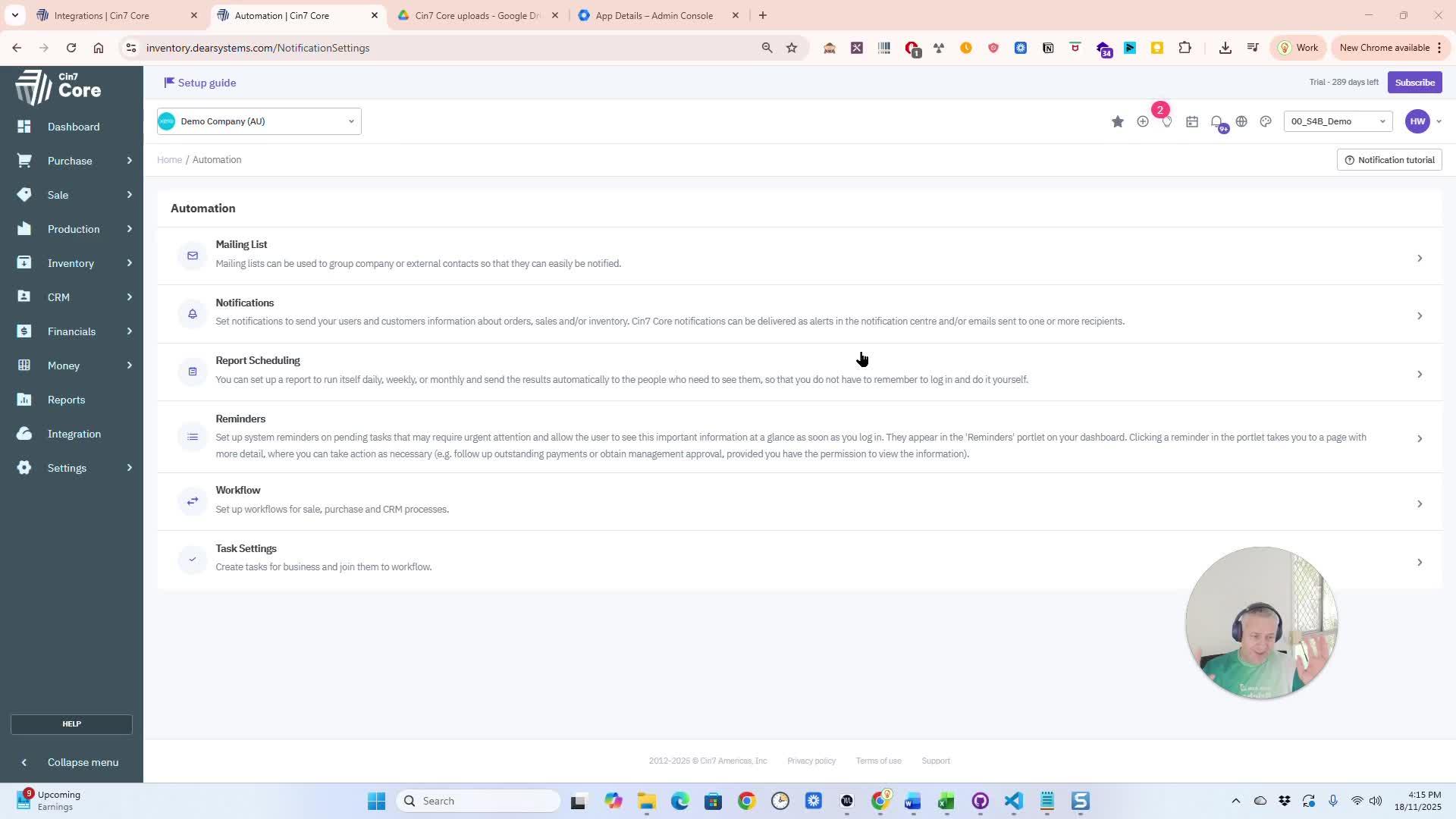
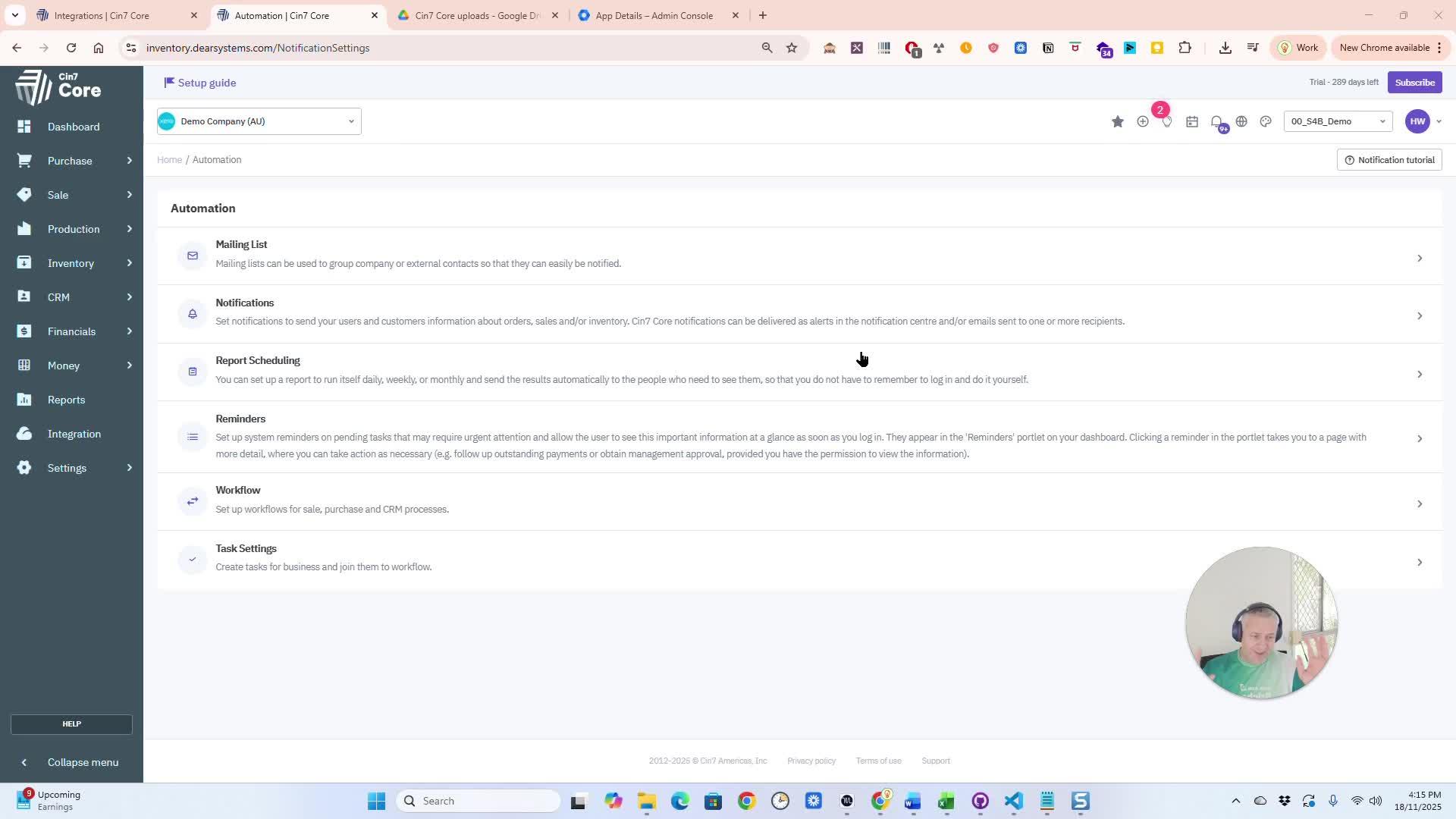
Configure your automation
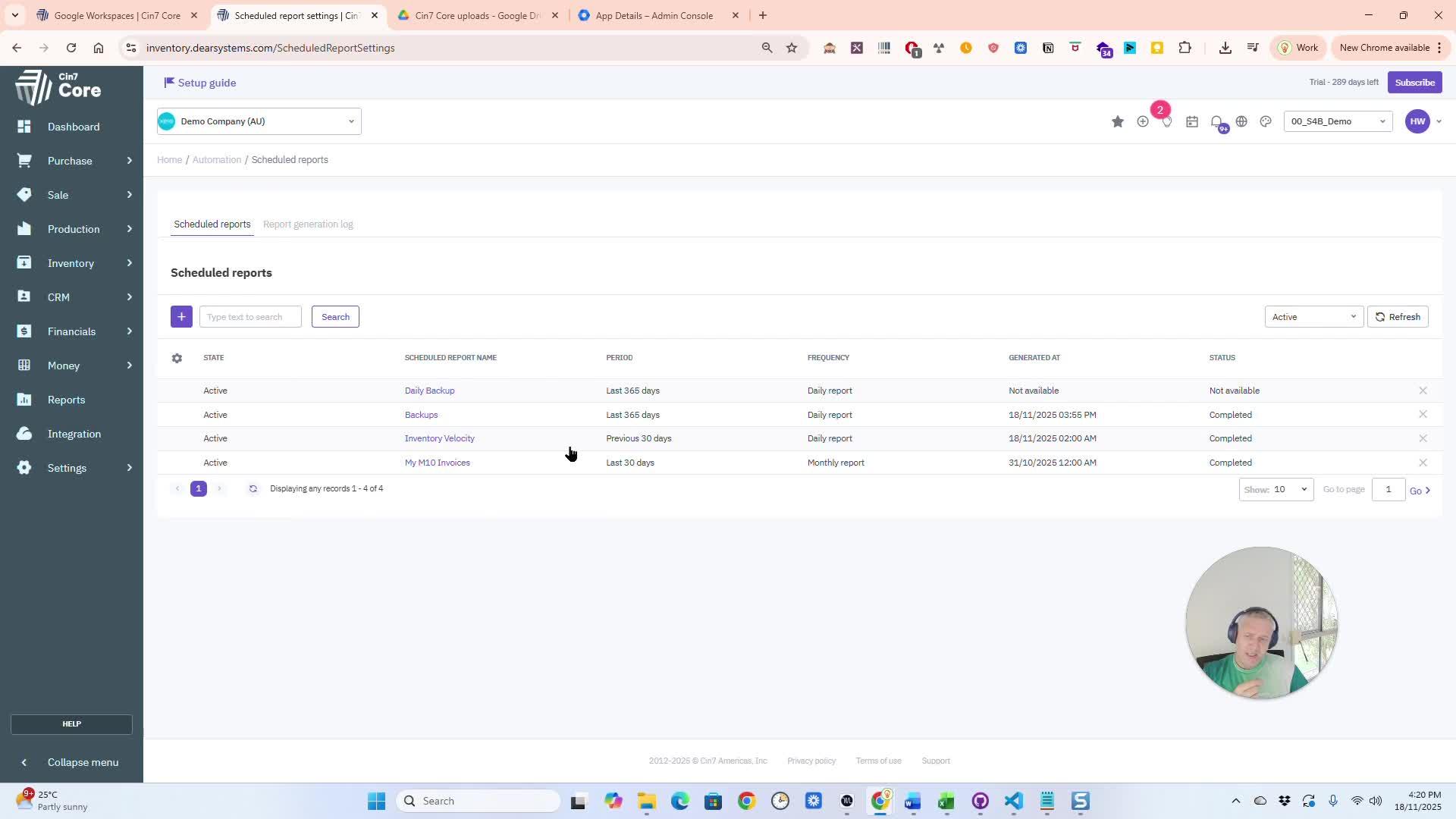
Click Settings to navigate to Automation. Activate it if not already active. Schedule a Backup Report.
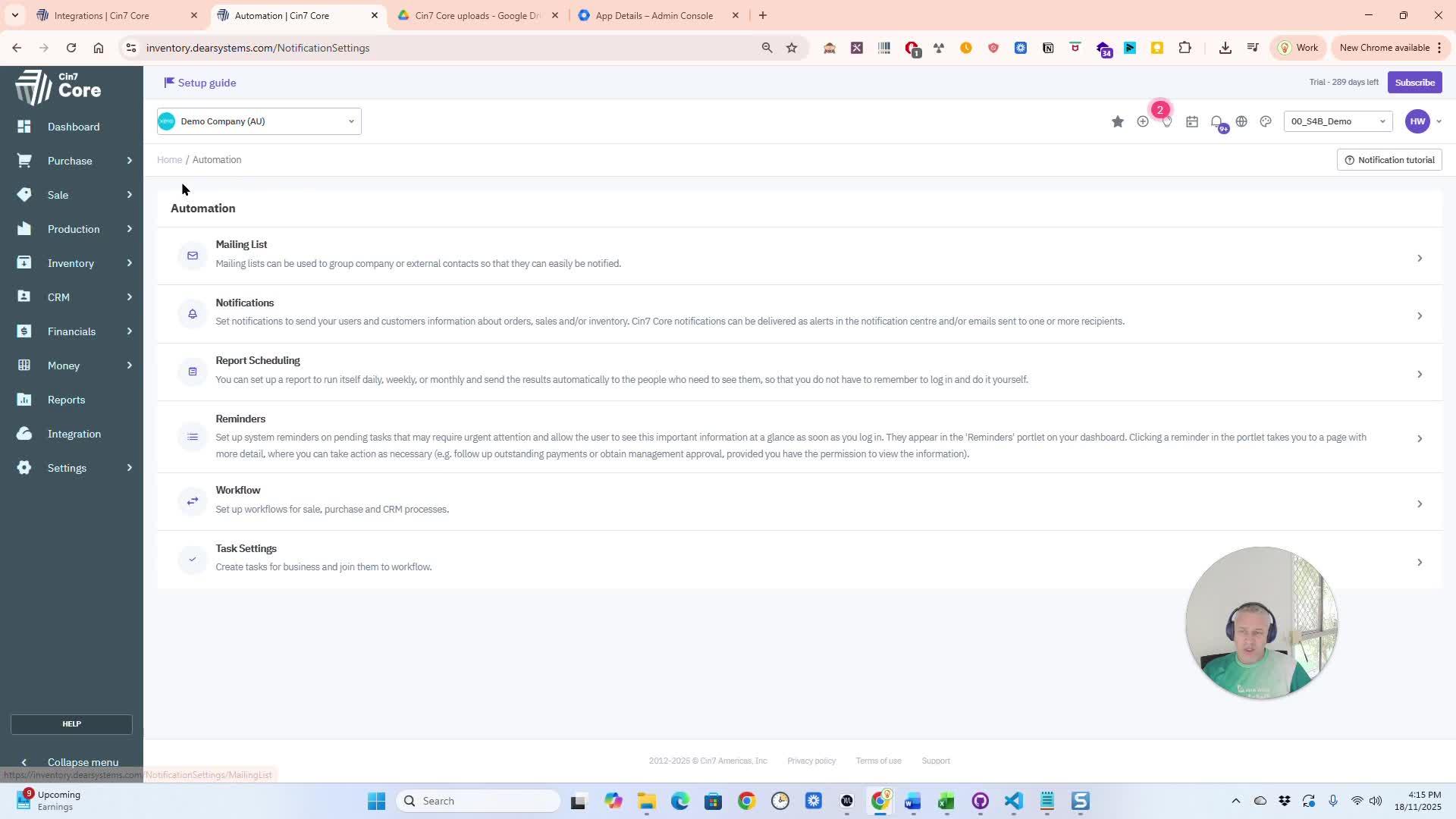
Explore the Scheduling Features
Explore the Scheduled Reports. Add new reports. See the list of scheduled reports.
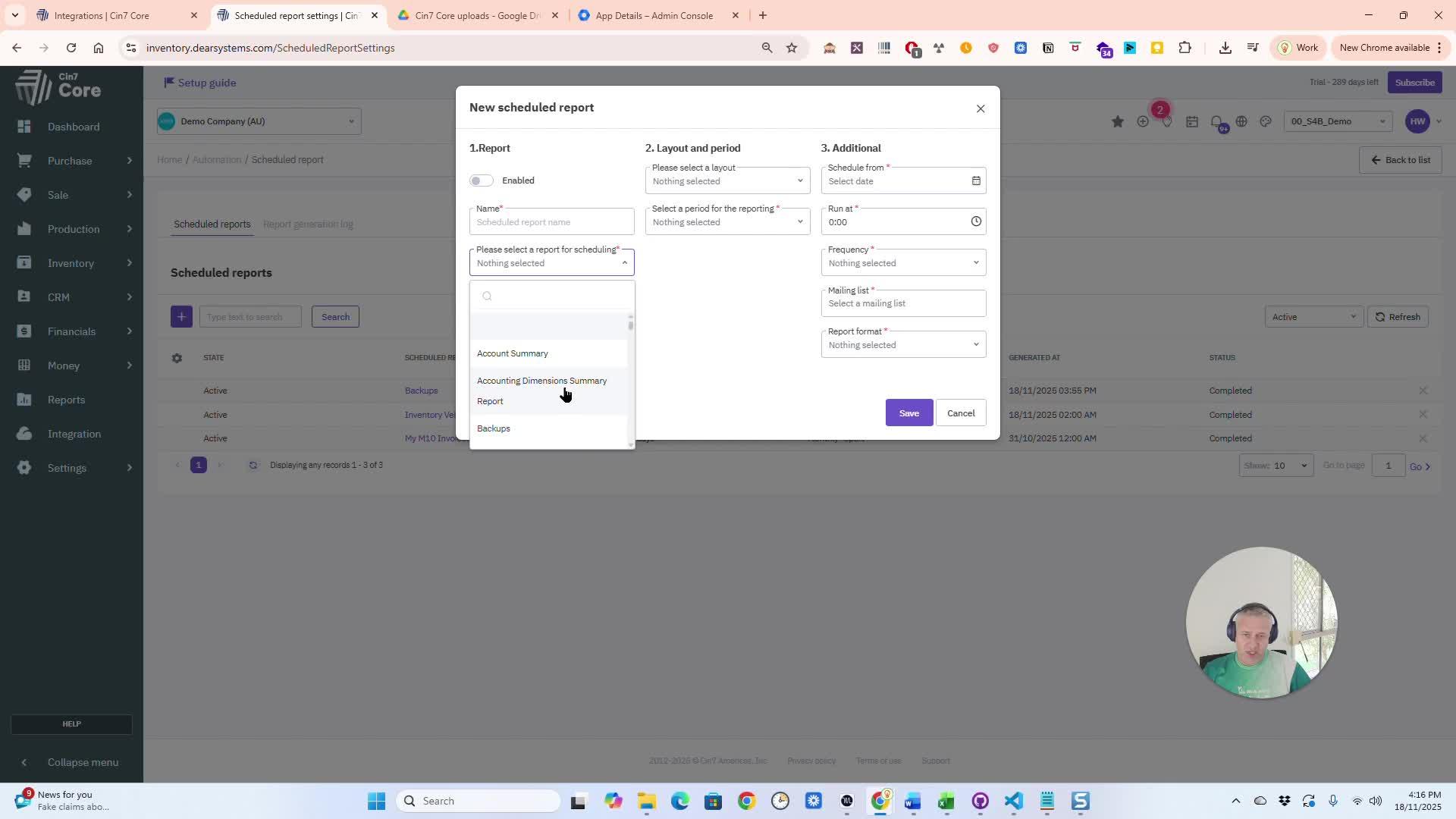
- Choose specific fields, files, or database tables to back up.
- You can select all available options if needed.
4. Set Backup Frequency and Start Time 1:01
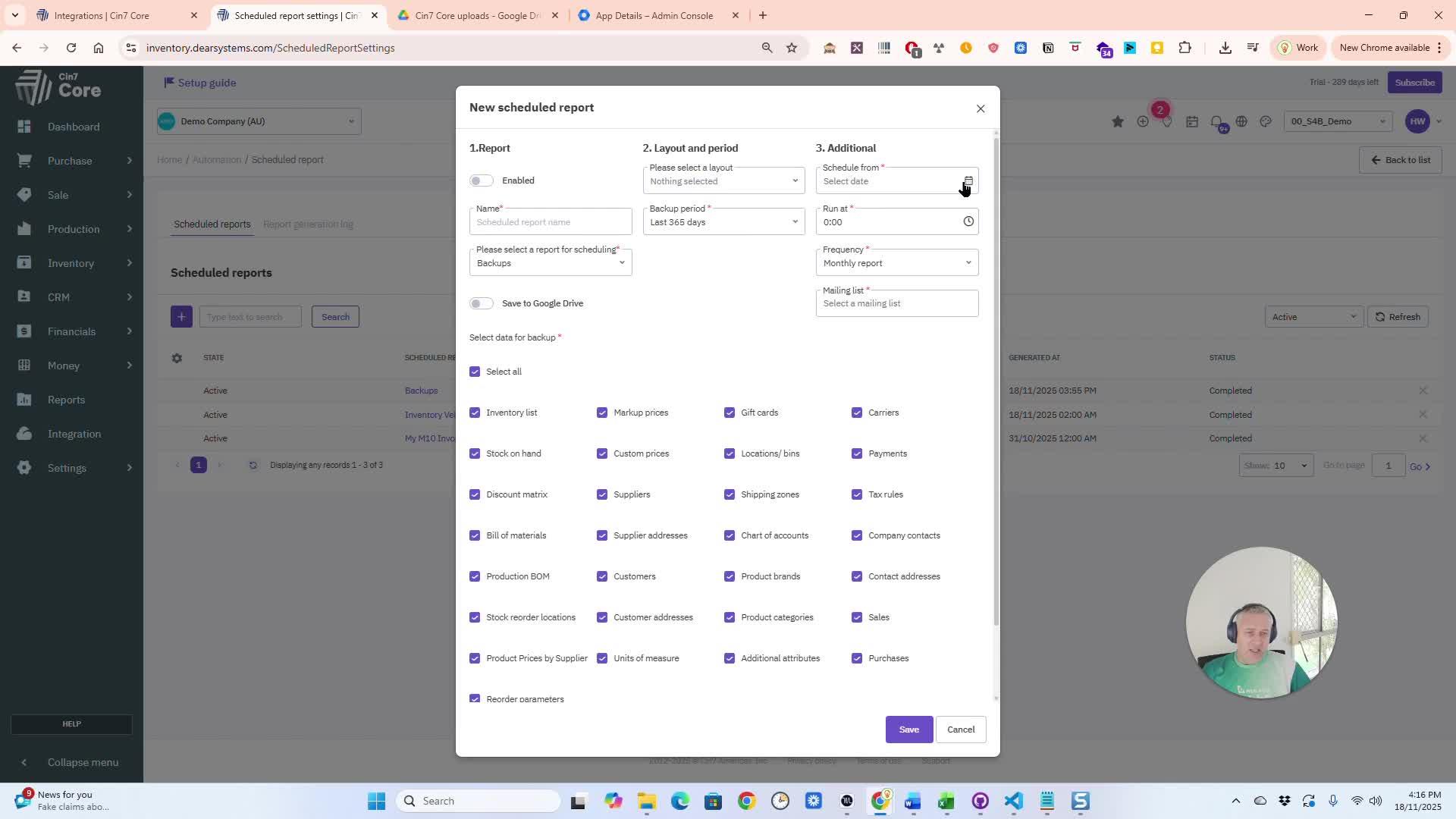
Backup Time and Schedule
Select the backup frequency (e.g., daily, weekly). Set a backup start time (e.g., 8:00 AM).
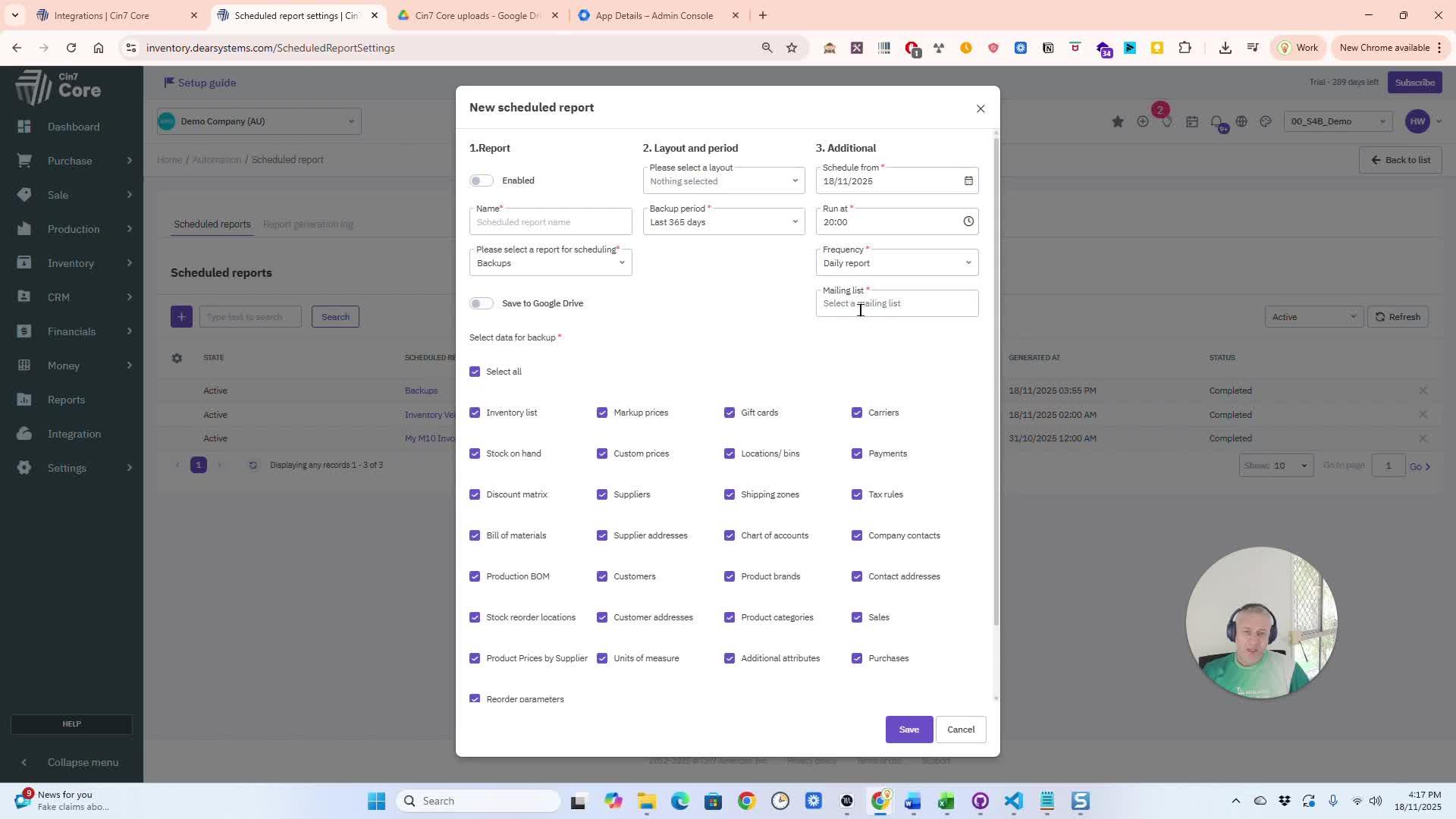
Get email alerts via Settings
Back up your files on Google Drive in less than 2 minutes.
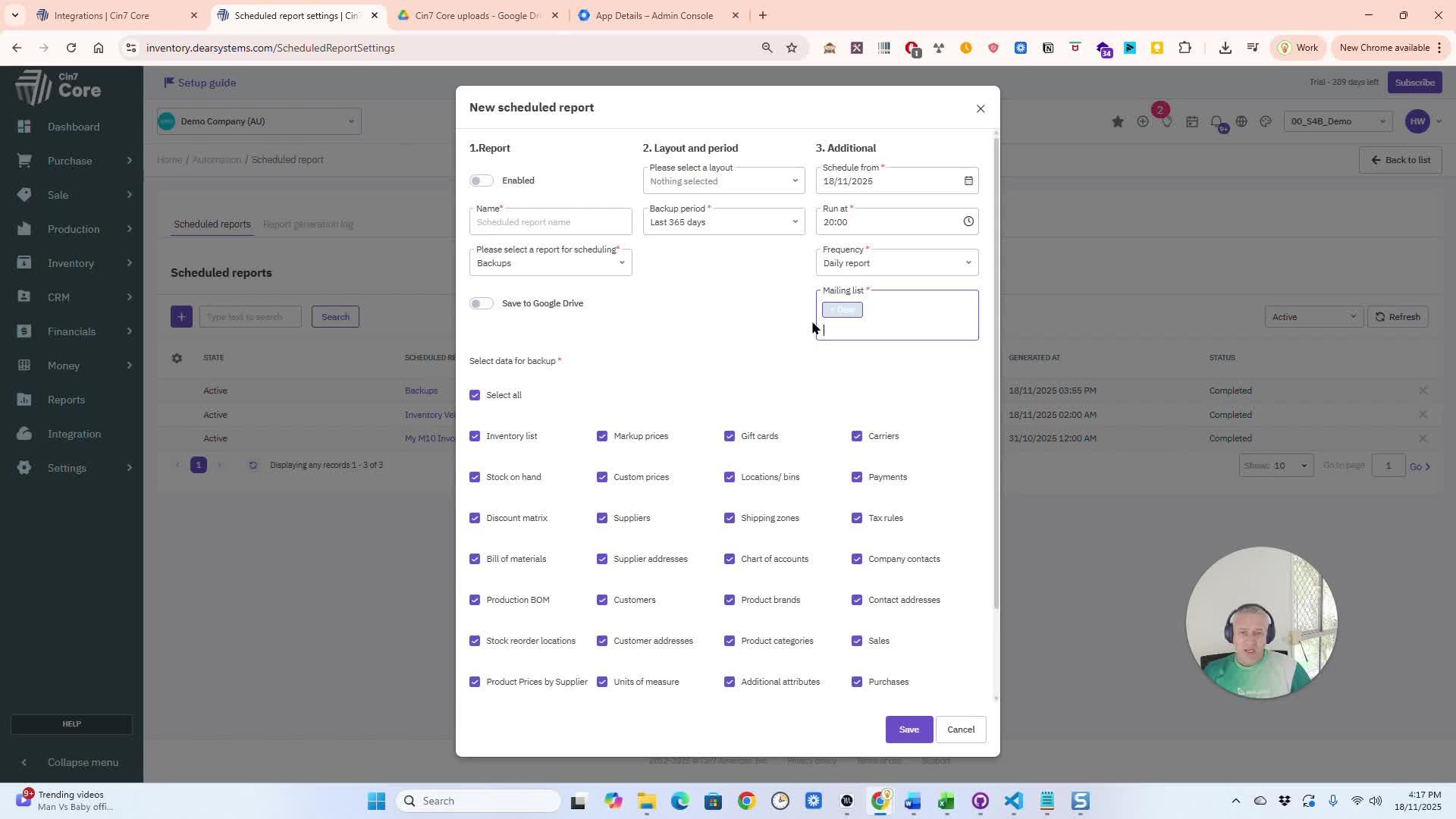
- Optionally, save backups directly to your Google Drive.
- Select the appropriate folder in your Google Drive for the backups.
7. Name and Finalize Backup Settings 2:00
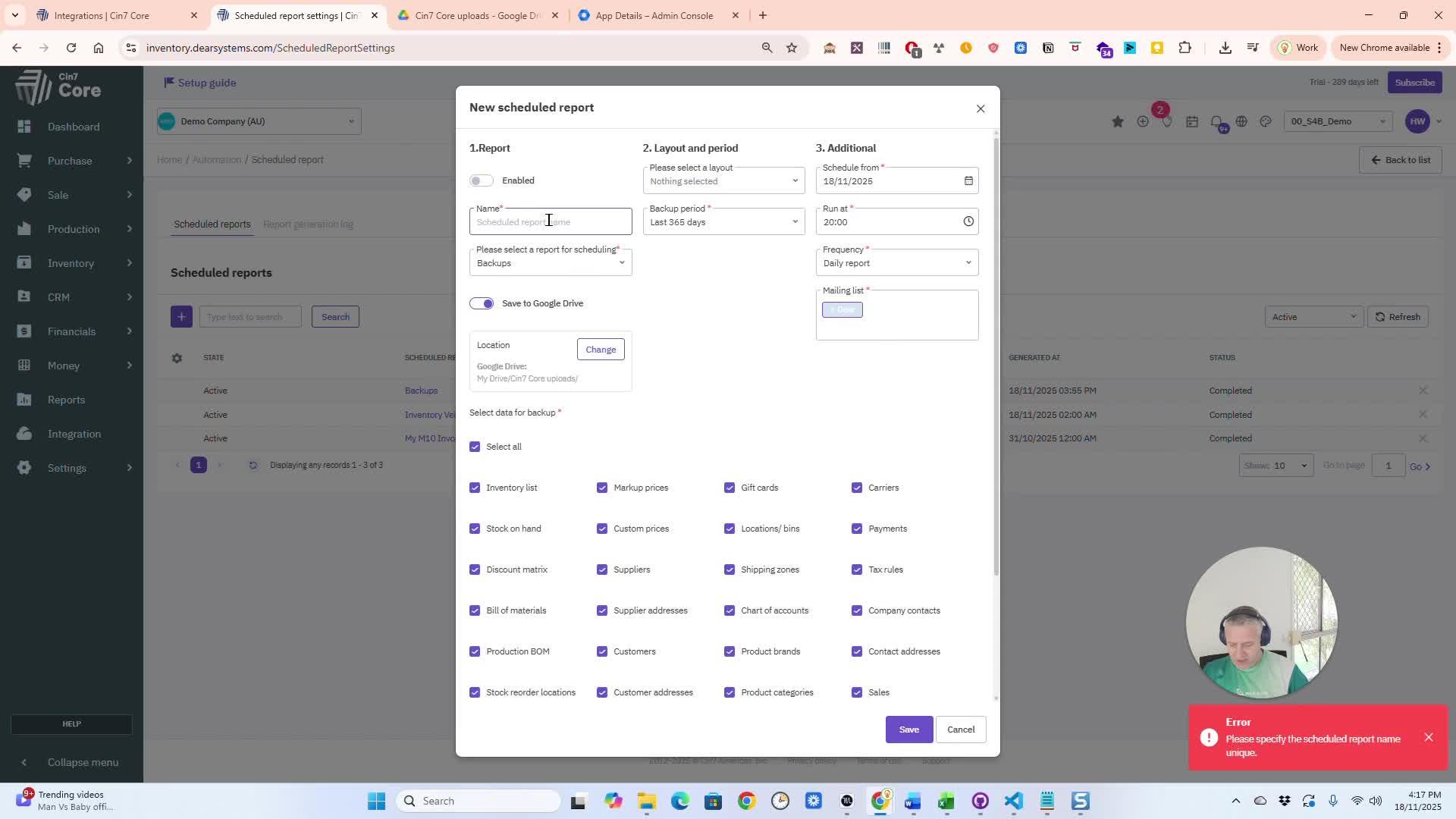
Configure your backup
Give your backup a name for easy identification. Confirm the settings and save the backup.
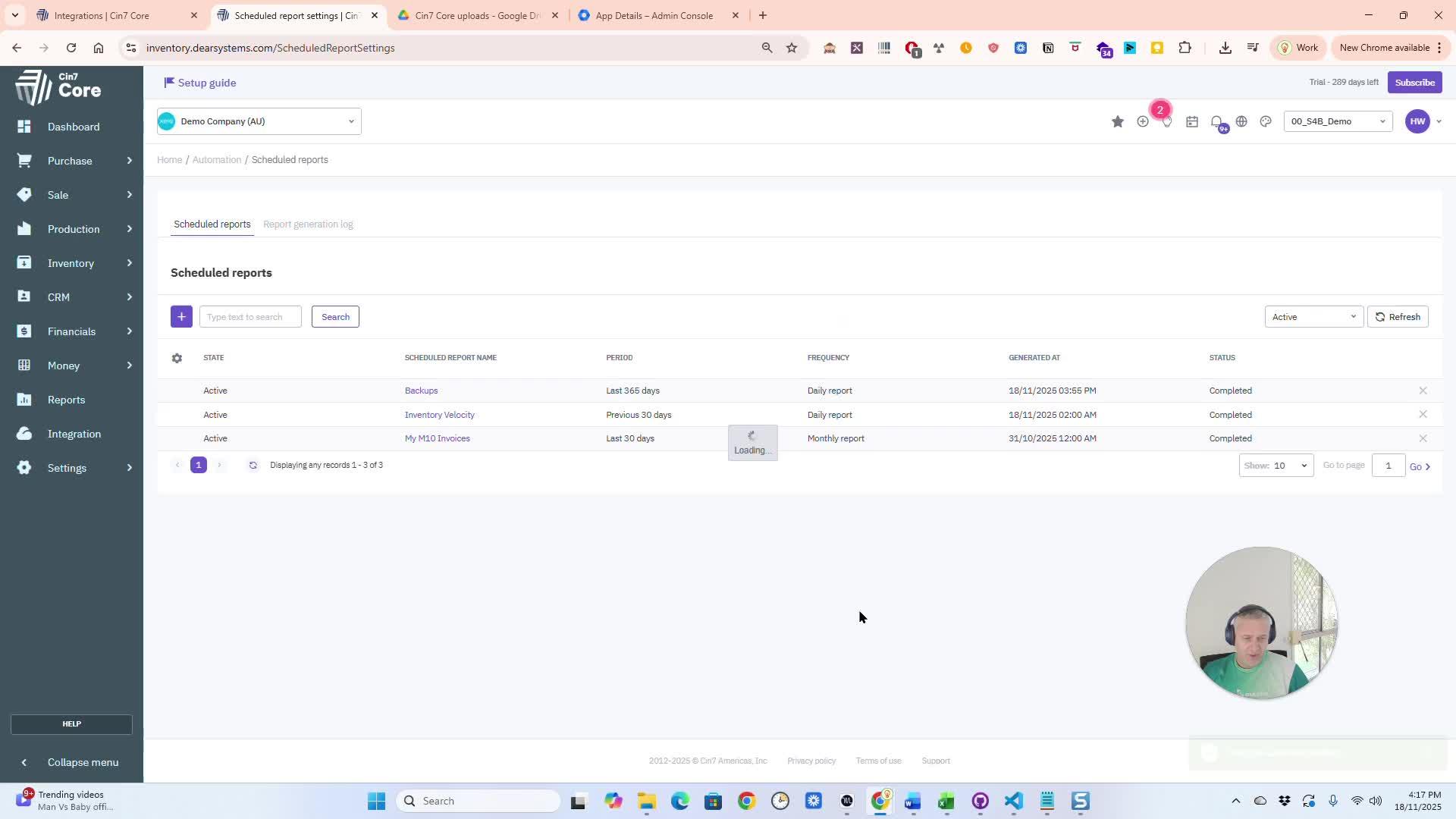
Check your backup status
After the backup runs, you will receive a notification email. The email will confirm that the backup is ready for download and may include an attachment.
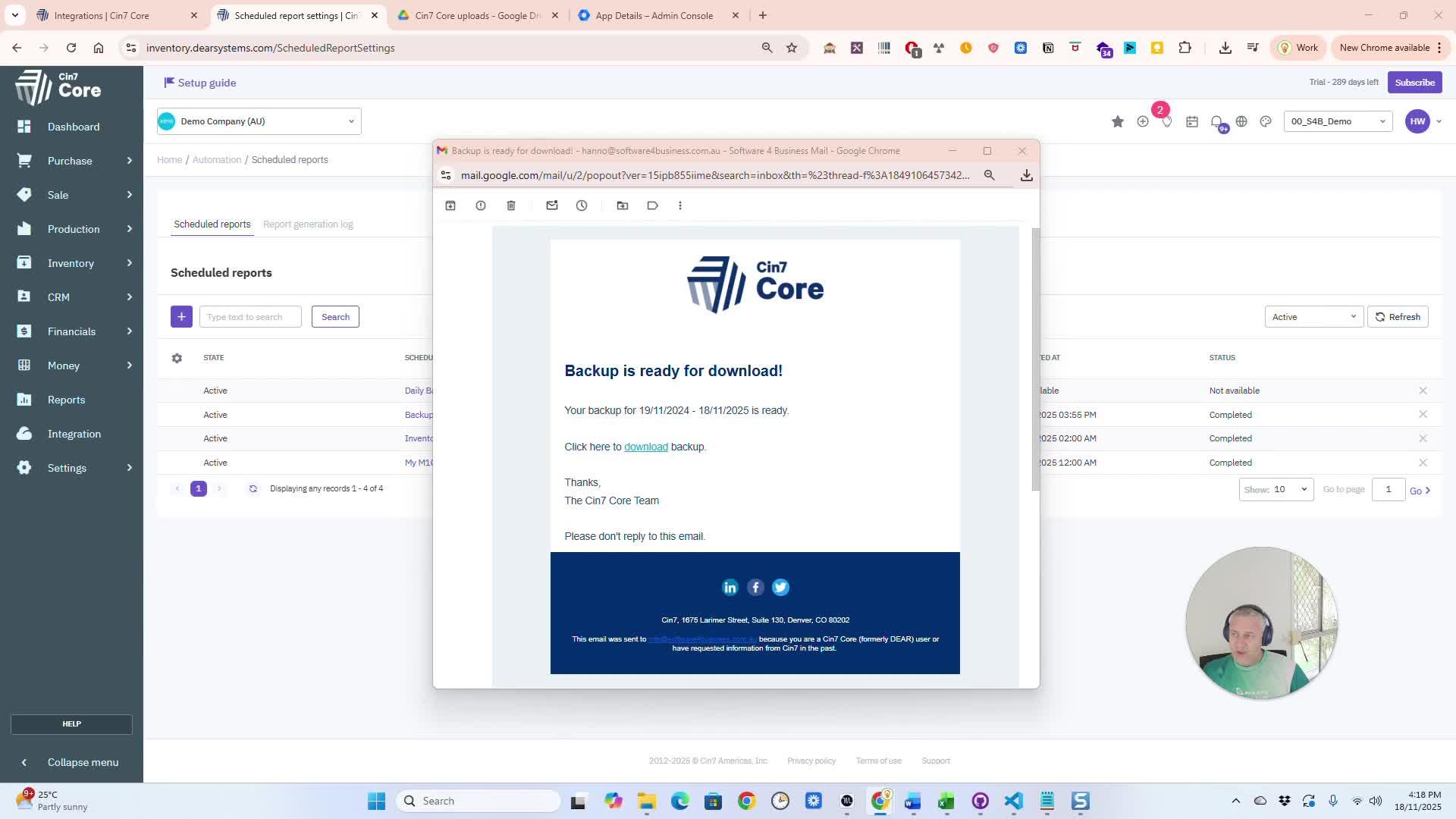
You can download the backup files from the email or access them in your Google Drive.
10. Set Up Google Drive Integration (if needed) 3:03
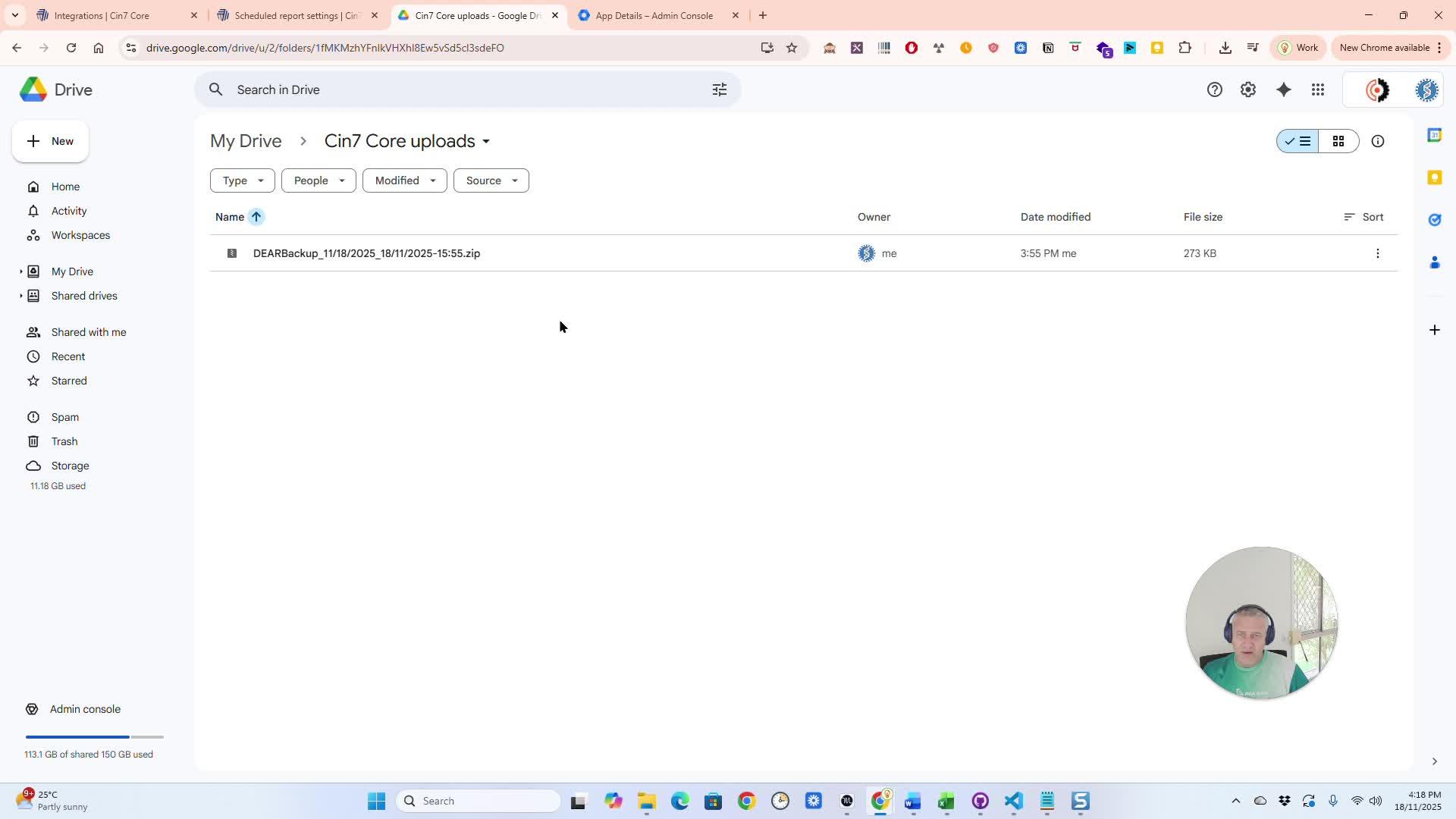
Google Integration Guide
Go to Integrations and search for Google. Connect your Gmail account and select folders for backup.
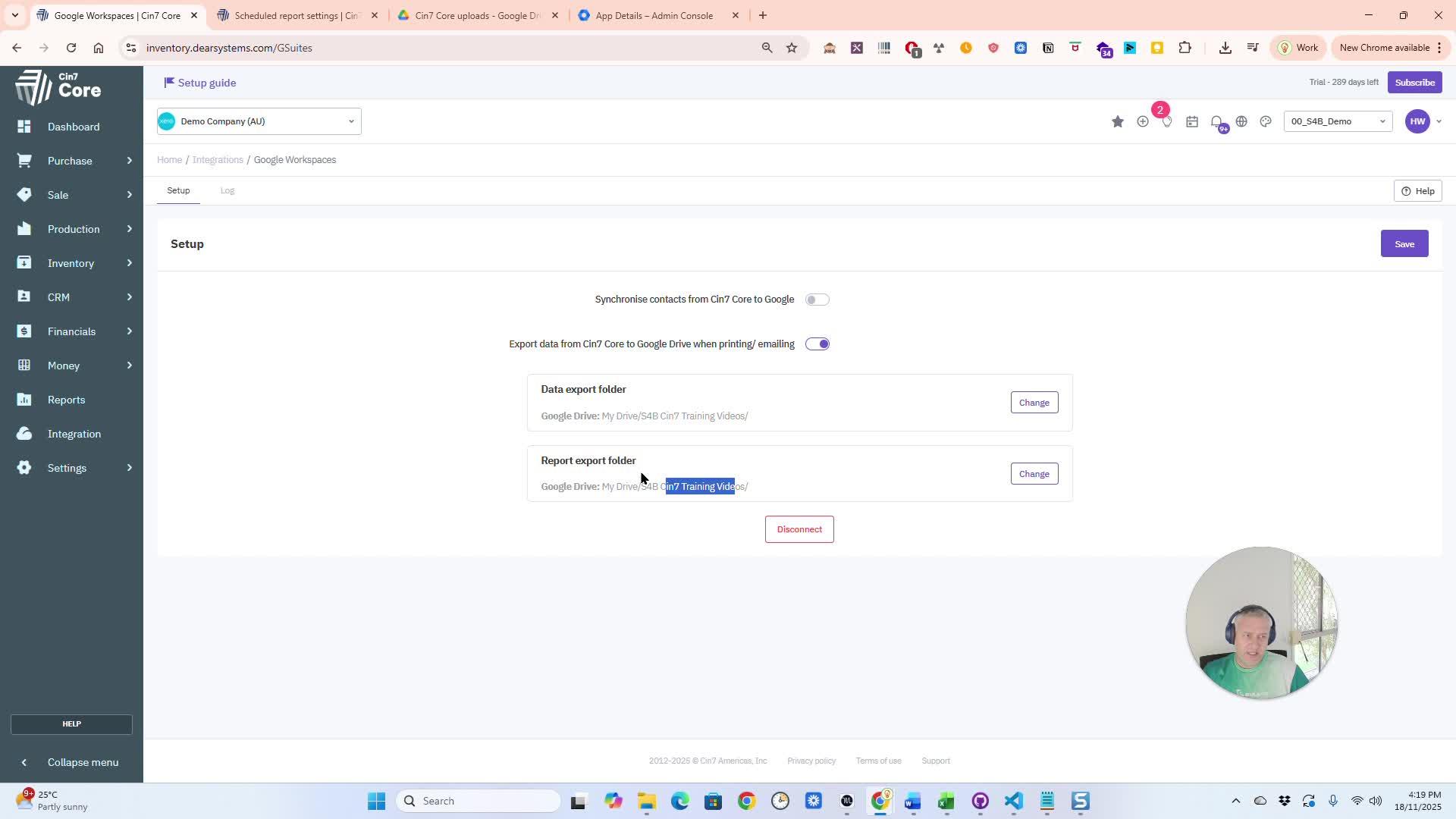
Customize Backup Options 4:08
Check for logs or notifications to confirm when backups are completed.
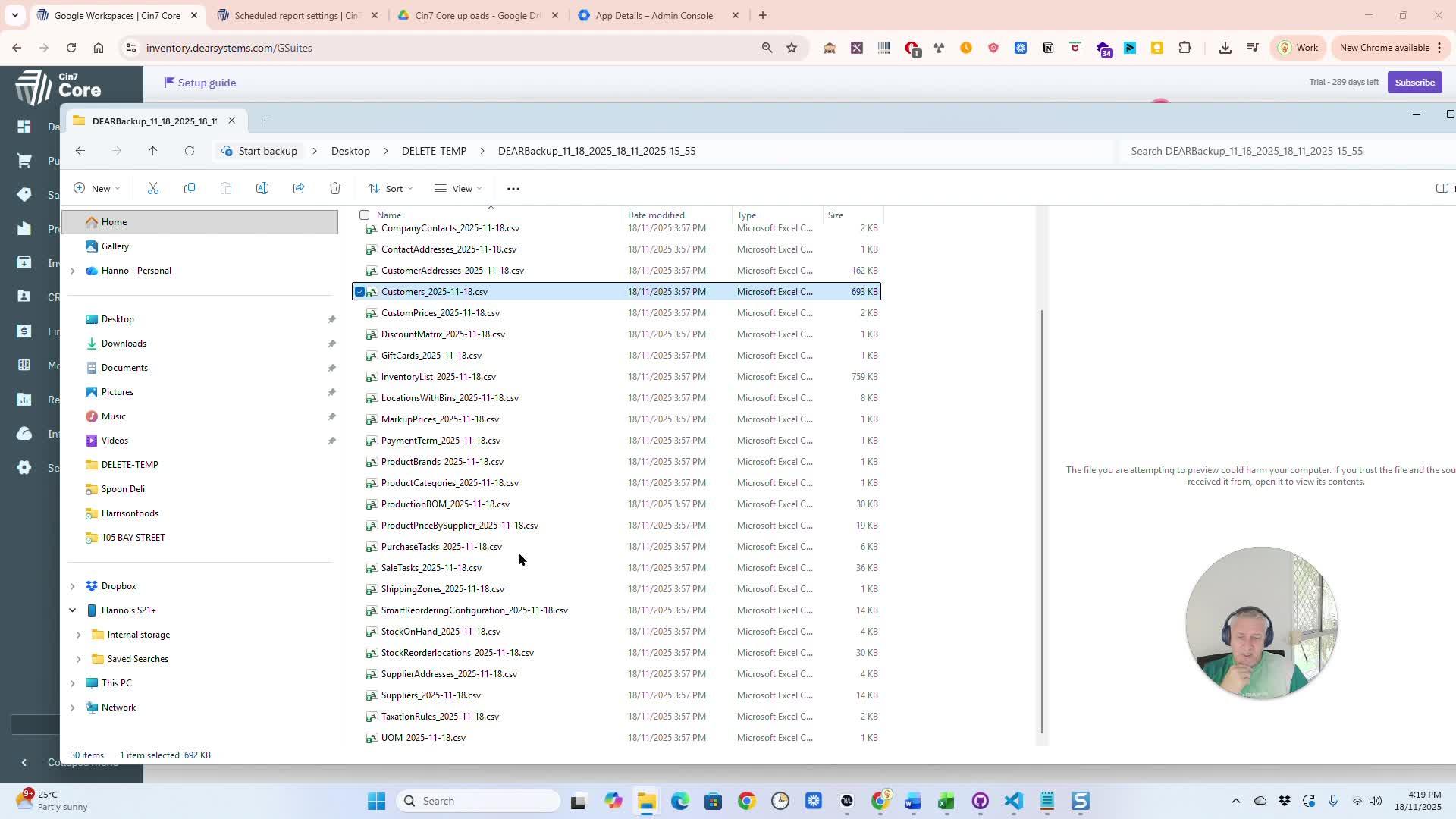
Backup Configuration
Review and adjust which tables or data you want to include in your backups.
Implement Backup Feature for Sensitive Data
If you have questions or need assistance, reach out for help.
In Summary:
Overview
This pull request introduces a new feature for backing up sensitive data within the application. Key highlights include:
- Backup Module Activation: Users can activate the backup module from the settings menu.
- Report Scheduling: Users can schedule reports for backup, selecting specific fields, files, or database tables.
- Flexible Scheduling Options: Users can set the frequency of backups (daily, weekly, monthly, etc.) and specify start times.
- Email Notifications: Users can opt to receive email notifications with backup results and download links.
- Google Drive Integration: Users can save backups directly to their Google Drive, with options to select specific folders.
Assumptions
- Users have access to the settings and automation module.
- Users are familiar with scheduling reports and setting up email notifications.
- Users have a Google account for integration with Google Drive.
Testing Strategy
- Verify that the backup module can be activated from the settings menu.
- Test the scheduling functionality to ensure reports can be scheduled correctly.
- Check that email notifications are sent upon backup completion.
- Validate the Google Drive integration by saving backups to a specified folder.