
Software4Business
Cin7 Core down – How to Easily Backup and Download all your Cin7 Core Data – Video



How to Backup Your Sensitive Cin7 Core Data
1. Access Settings and Automation 0:01
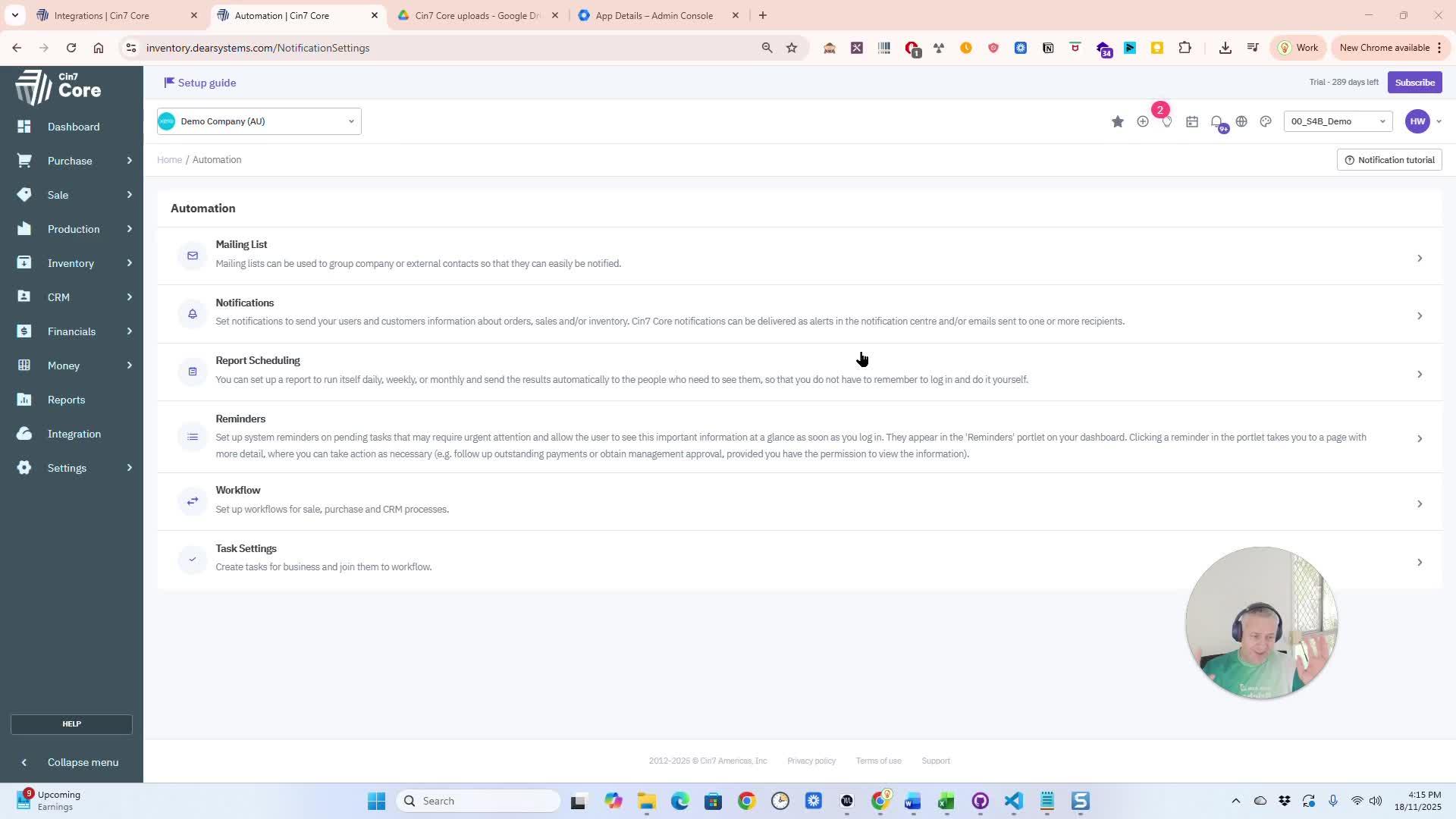
Click on Settings.
Navigate to Automation. You may need to activate the automation module if it’s not already active.
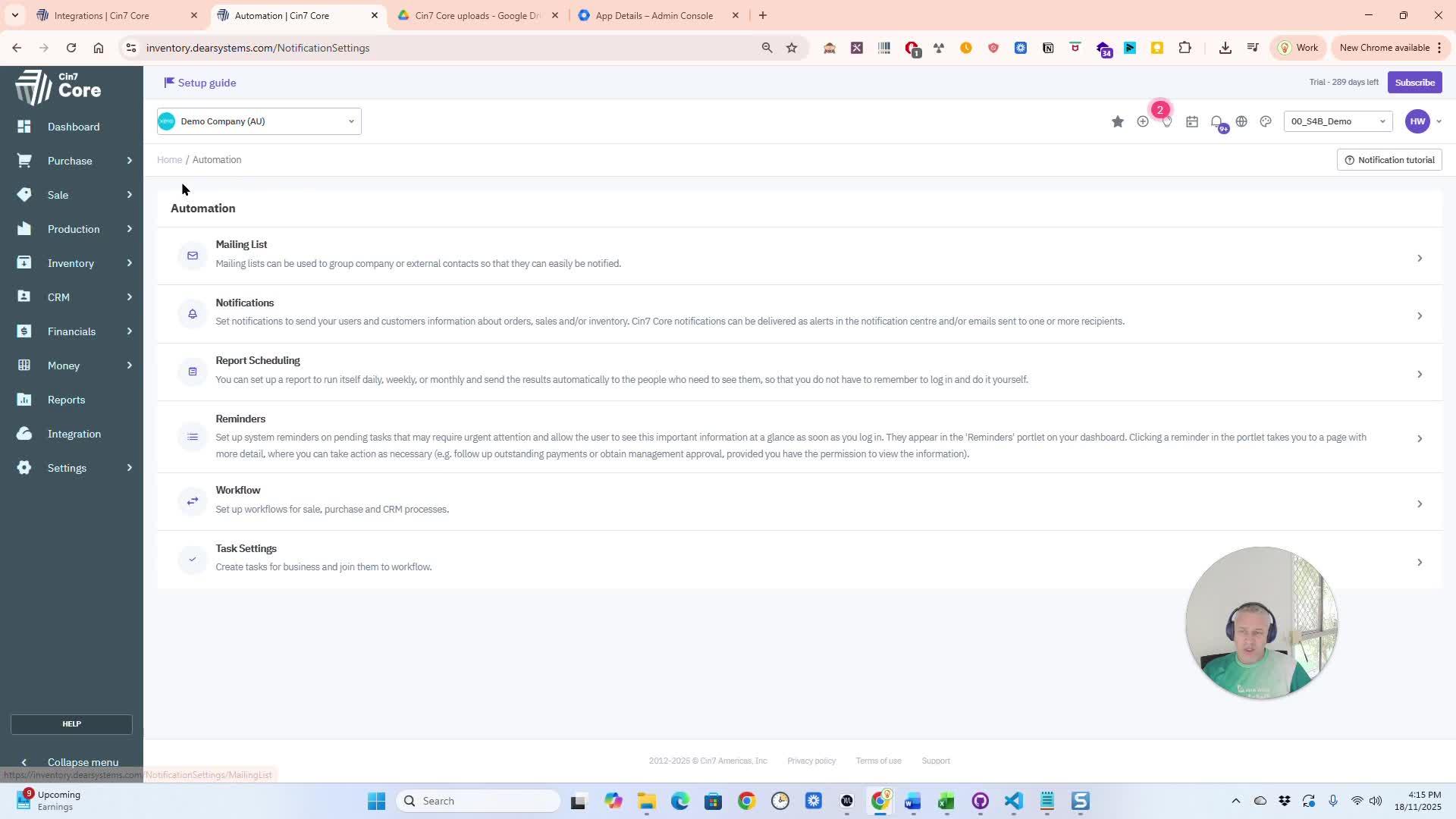
Explore Scheduled Reports
Click 'Report' in scheduling, view reports, and add new ones with the plus sign.
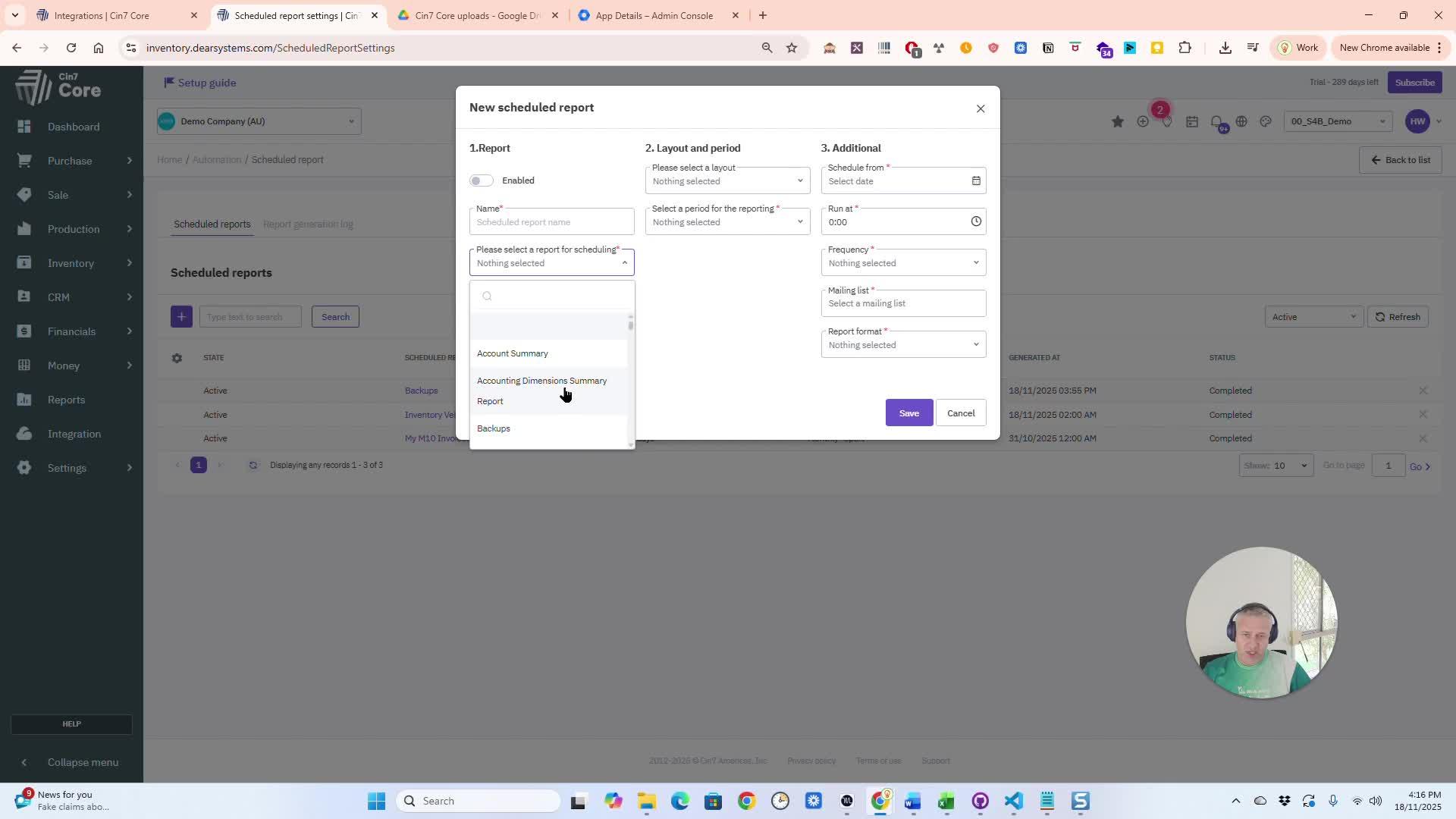
- Choose specific fields, files, or database tables to back up.
- You can select all available options if needed.
4. Set Backup Frequency and Start Time 1:01
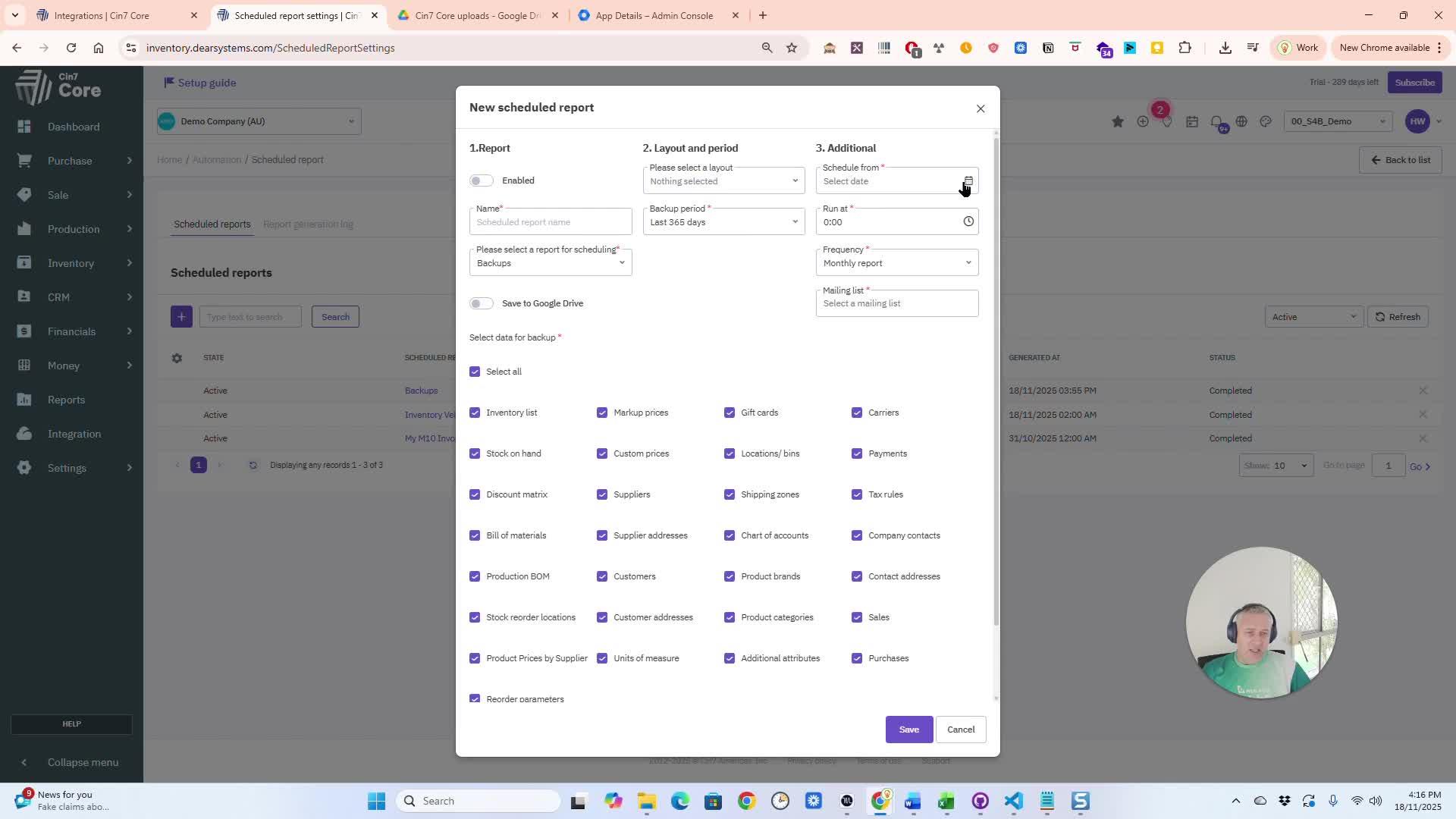
Schedule automatic backups
Select backup frequency (e.g., daily, weekly, monthly). Set the backup start time (e.g., 8:00 AM).
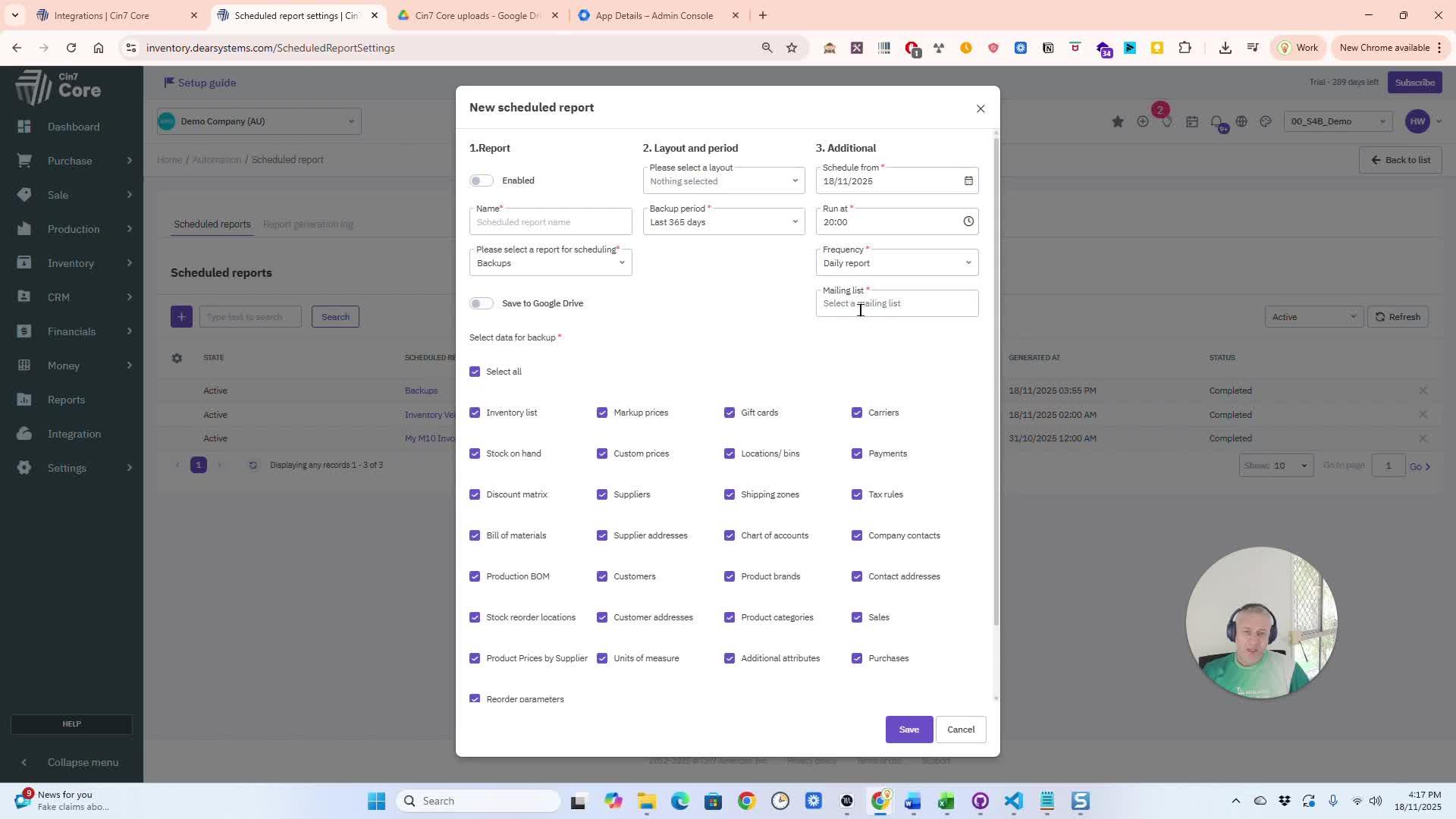
Configure Mailing Lists
Configure email notifications in Settings and add yourself to the recipient list.
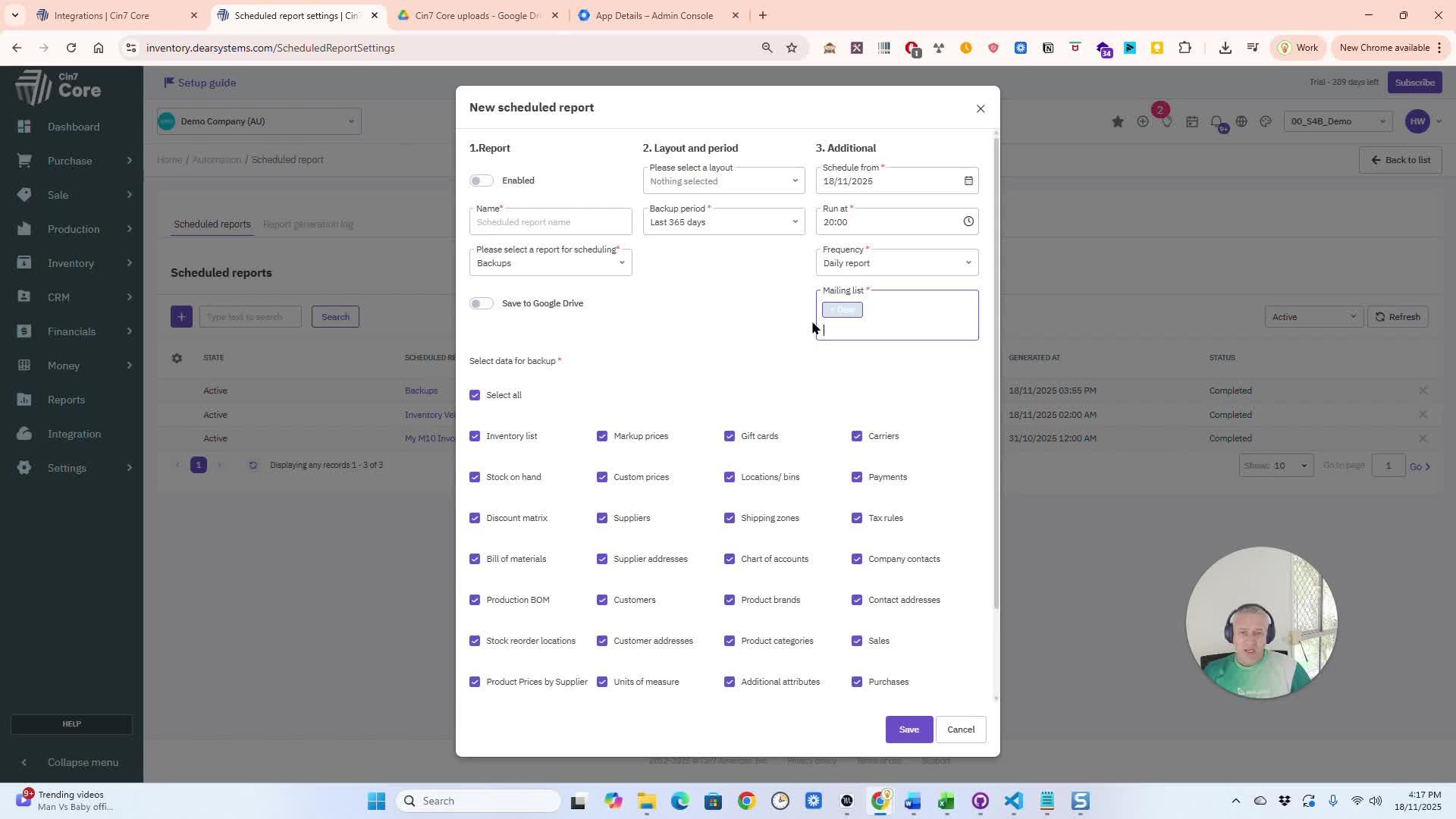
- Optionally, save backups directly to your Google Drive.
- Select the appropriate folder in your Google Drive for the backups.
7. Name and Finalize Backup Settings 2:00
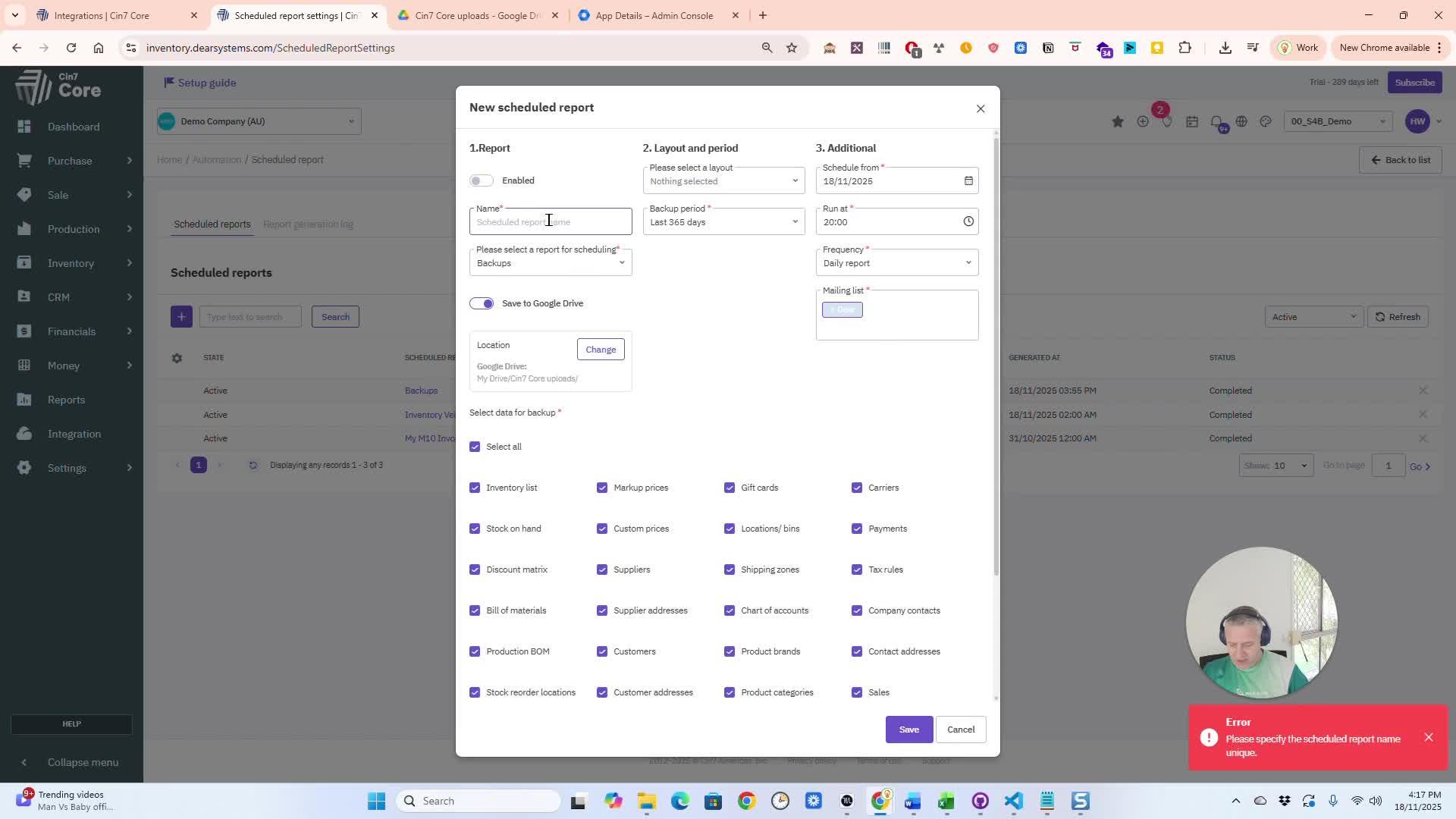
Set your backup for simple use
Confirm settings and safely save data.
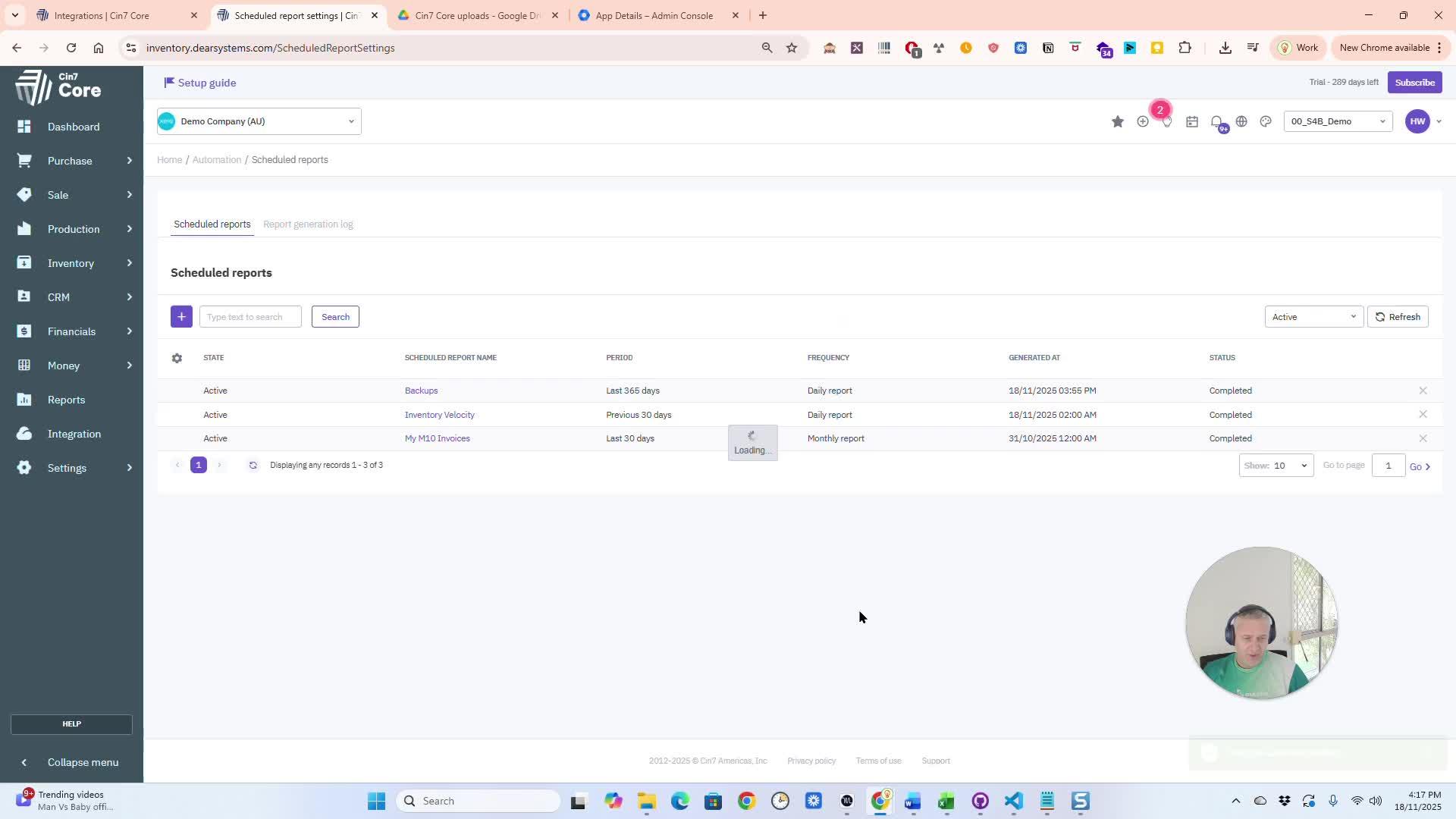
Backup notification
After the backup runs, you will receive a notification email. The email will confirm that the backup is ready for download and may include an attachment.
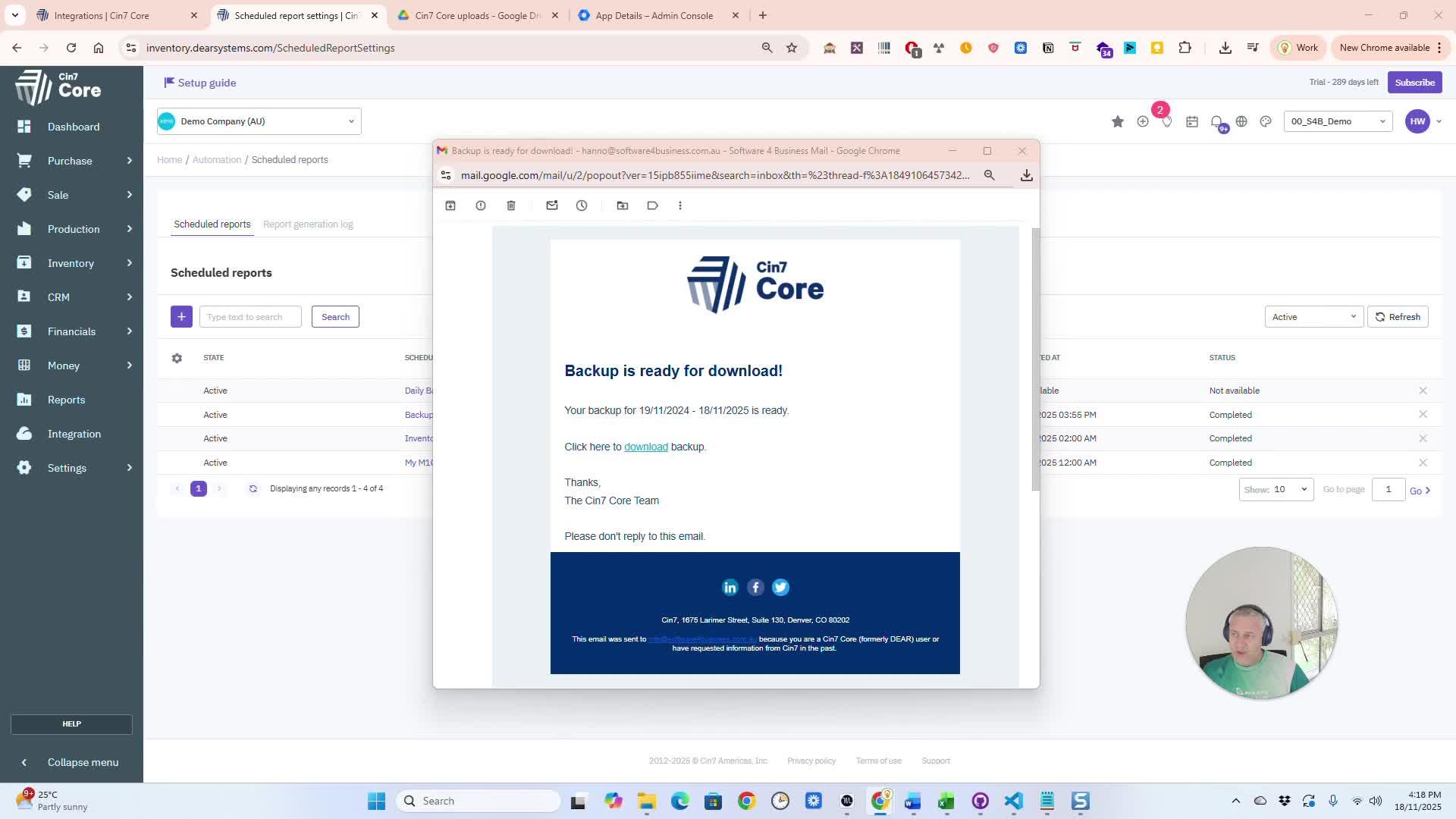
You can download the backup files from the email or access them in your Google Drive.
10. Set Up Google Drive Integration (if needed) 3:03
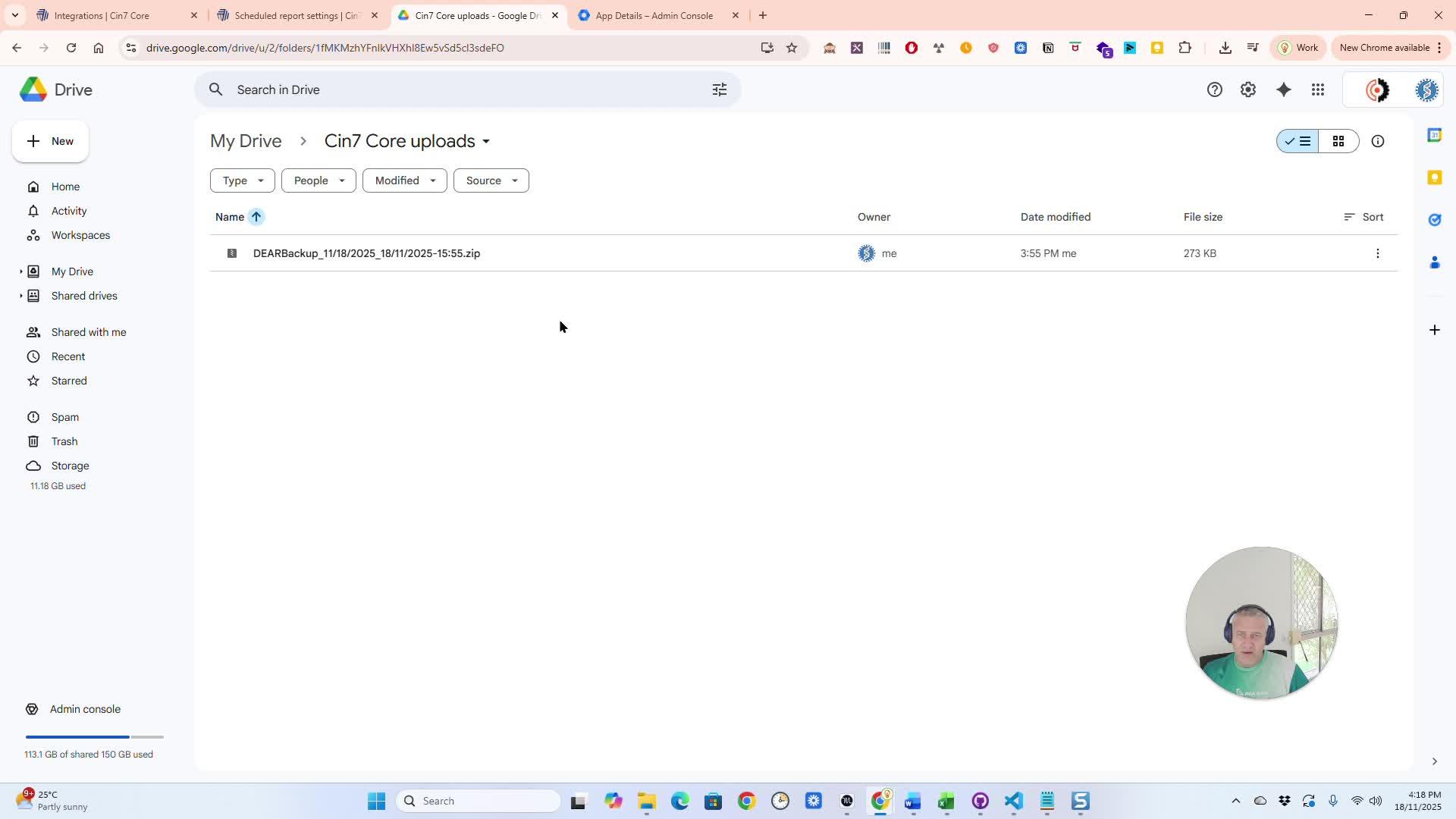
Easy Google Drive Integration
Go to Integrations and search for Google. Connect your Gmail account and select folders for backup.
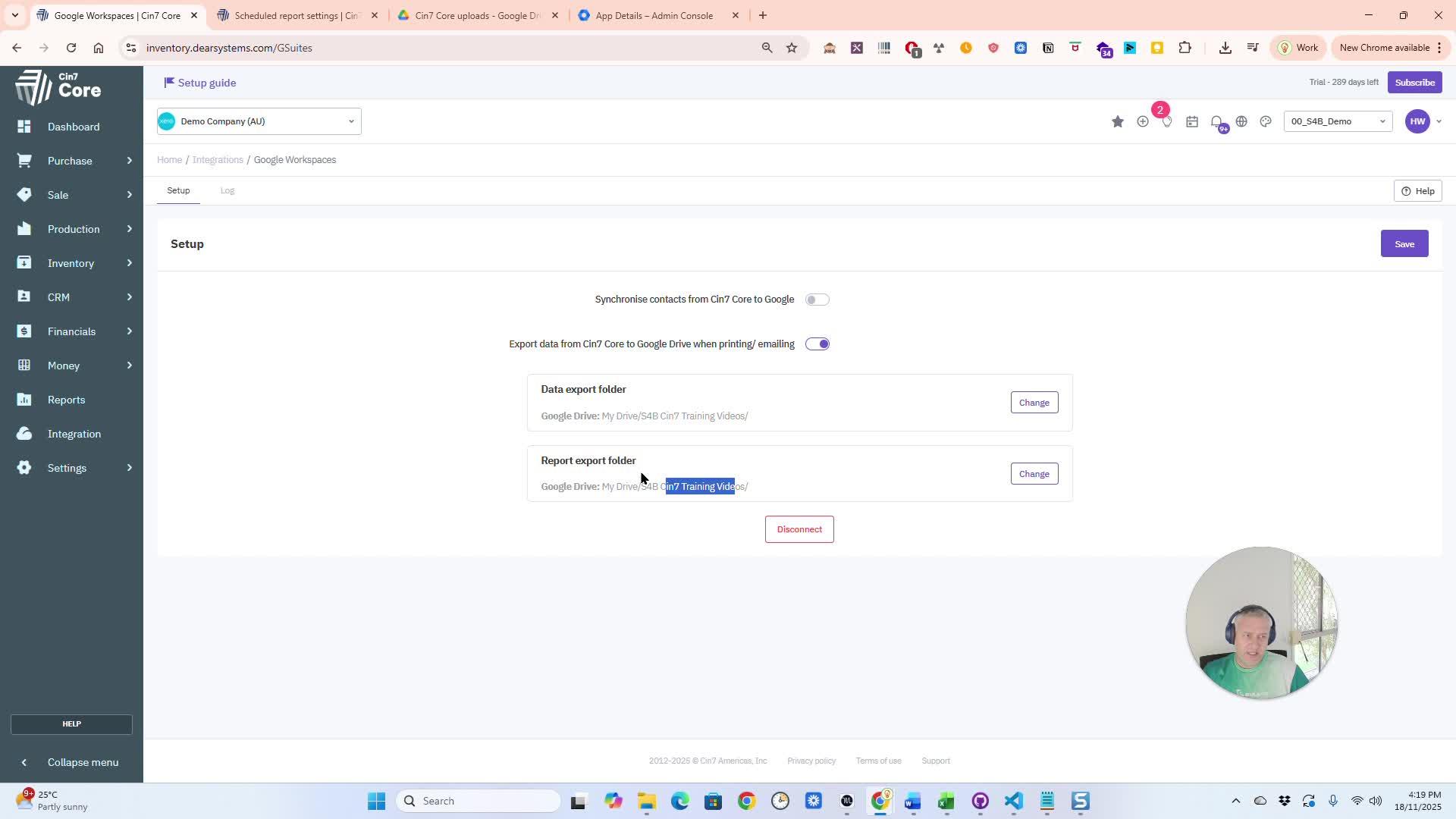
Configure Backup Options
Check the logs or alerts to confirm when your backups are finished.
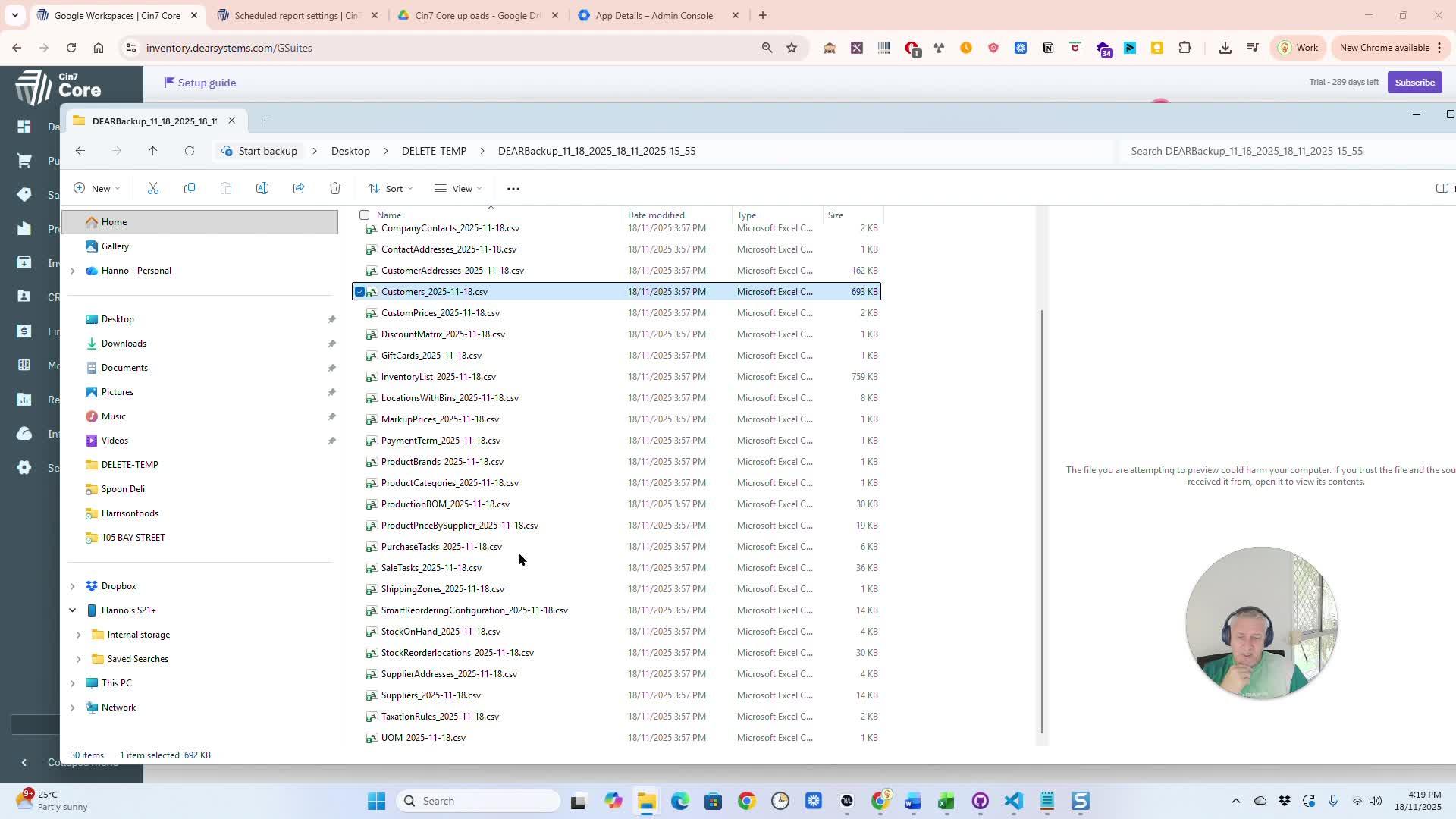
Learn how to get support
Configure data tables to include in the backup process for your company.
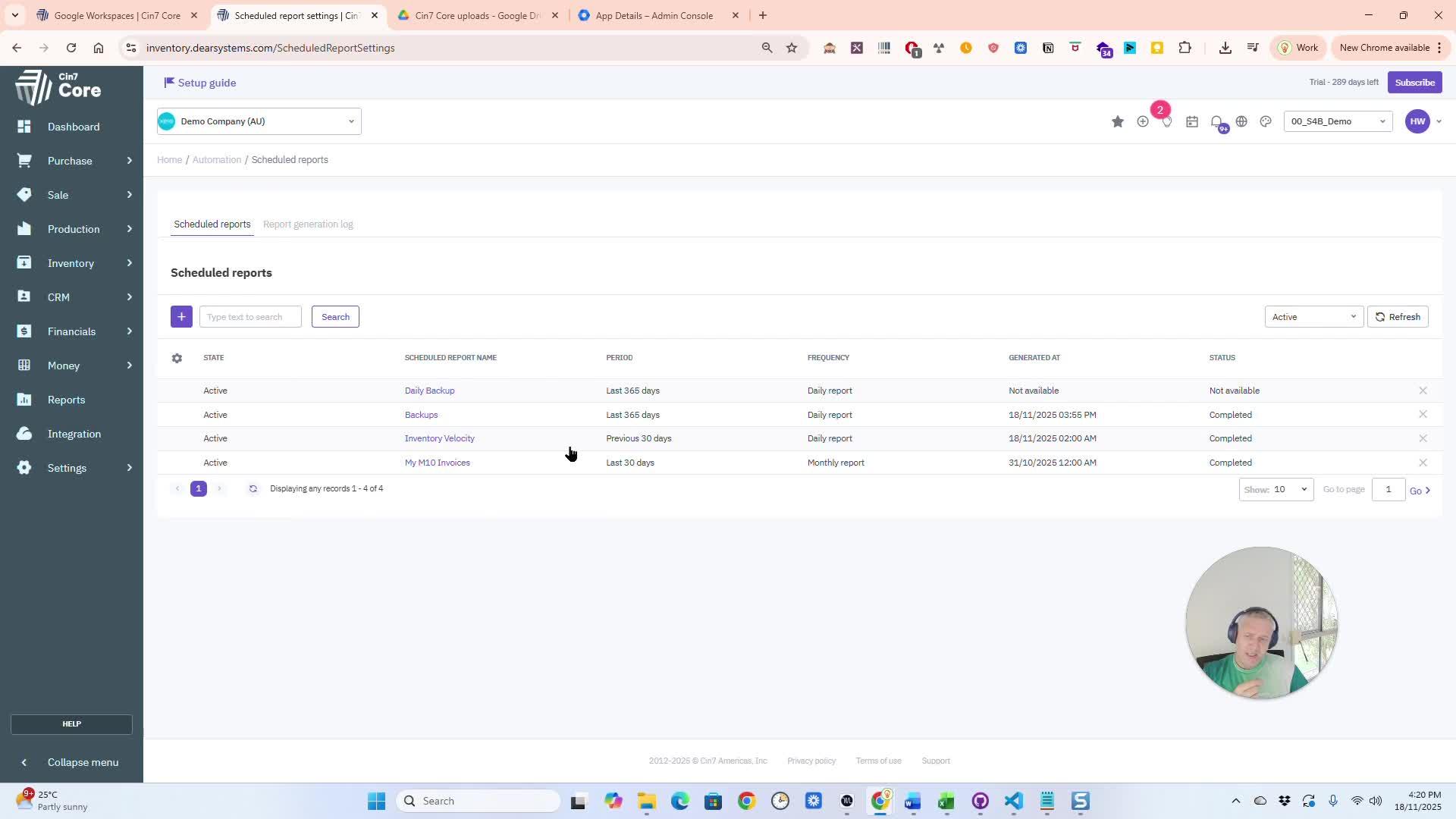
Implement Backup Feature for Sensitive Data
If you have questions or need assistance, reach out for help.
In Summary:
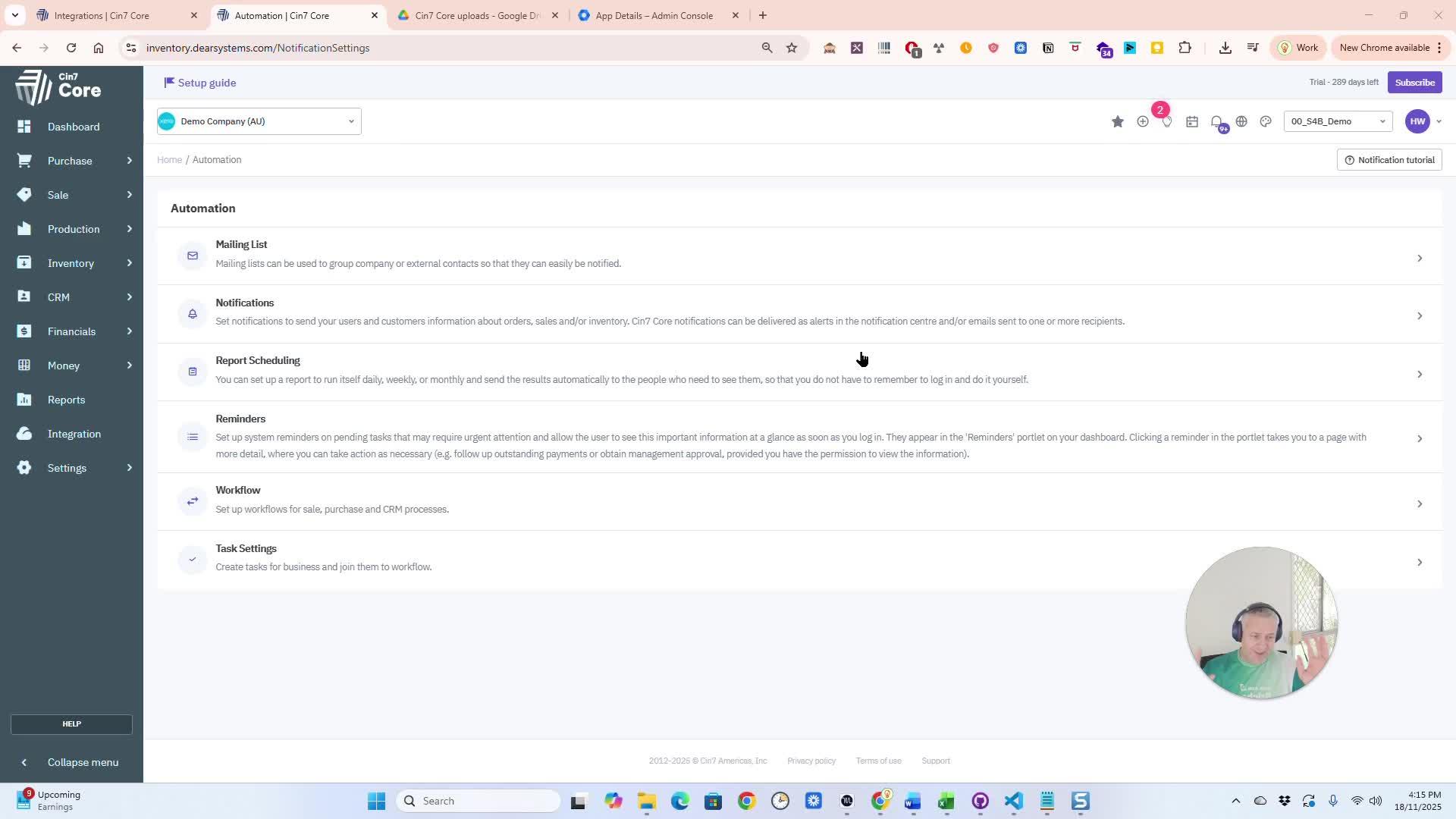
Overview
This pull request introduces a new feature for backing up sensitive data within the application. Key highlights include:
- Backup Module Activation: Users can activate the backup module from the settings menu.
- Report Scheduling: Users can schedule reports for backup, selecting specific fields, files, or database tables.
- Flexible Scheduling Options: Users can set the frequency of backups (daily, weekly, monthly, etc.) and specify start times.
- Email Notifications: Users can opt to receive email notifications with backup results and download links.
- Google Drive Integration: Users can save backups directly to their Google Drive, with options to select specific folders.
Assumptions
- Users have access to the settings and automation module.
- Users are familiar with scheduling reports and setting up email notifications.
- Users have a Google account for integration with Google Drive.
Testing Strategy
- Verify that the backup module can be activated from the settings menu.
- Test the scheduling functionality to ensure reports can be scheduled correctly.
- Check that email notifications are sent upon backup completion.
- Validate the Google Drive integration by saving backups to a specified folder.
Titan RV: Navigating Growth
Titan RV, under Ashley Gill and Andrew Smith, experienced rapid growth using Cin7 Core’s inventory management. Their brands, such as Redfoot Levelling, showcase innovation. Titan RV's operational revamp and Software4Business partnership led to impressive results, promising a bright future.

11 Little-known Cin7 Core Features you would love.
Power the Future of Your Complete Business with Software4Business and Dear Systems.
Continue reading The world is changing, and so are the systems that support it. [READ MORE]

Cin7 Core: The Modern Successor to Dear Systems
Dive into Cin7 Core, the evolution of DEAR Systems, and explore a game-changing feature. Redefine business efficiency with its suite of tools.
Cin7 Core awaiting approval

Introducing the ‘Awaiting Approval’ Status Filter – A Revolutionary Feature in Cin7 Core
In this era of relentless innovation, Cin7 Core unveils the ‘Awaiting Approval’ status filter. This newly launched feature is engineered to drastically alter how you oversee your sales and purchases. A feature that was once solely accessible when Core to Core Networking was enabled, is now ready for action irrespective of the status of order or quote approval.
Breathing Life into Sales and Purchase Modules with the ‘Awaiting Approval’ Status Filter
A Paradigm Shift in Sales and Purchase Management
Visualize the convenience of efficiently segregating your sales and purchases based on their ‘Awaiting Approval’ status.
This innovative update isn’t just a feature change; it’s a paradigm shift that guarantees a fluid and hiccup-free workflow, proving to be a boon for all Cin7 users!

Simplifying Cin7 Login and Quote Approval with Intuitive Design
Rolling Out the Red Carpet for the ‘Awaiting Approval’ Status Filter
Before you leap to harness the power of this novel feature, some prerequisites require your attention. Start by logging into your Cin7 account. Once inside, enable quote approval by navigating to ‘Settings’, selecting ‘General settings’, then proceeding to ‘Sale process customisation’ or ‘Purchase process customisation’.
Get to know Cin7 Core - Awaiting Approval step by step,
to help your company integrate this useful software.

Configuring User Access Rights in Cin7 Core
For the ‘Awaiting Approval’ filter to function, it is imperative to set user access rights accordingly. Essentially, the approval setting must be disabled. If this sounds complex, don’t worry! Cin7 Help, available through Cin7 Academy, can guide you through this process, ensuring a smooth transition.
Unleashing the Full Potential of Cin7 API
Harnessing the Power of the ‘Awaiting Approval’ Status Filter
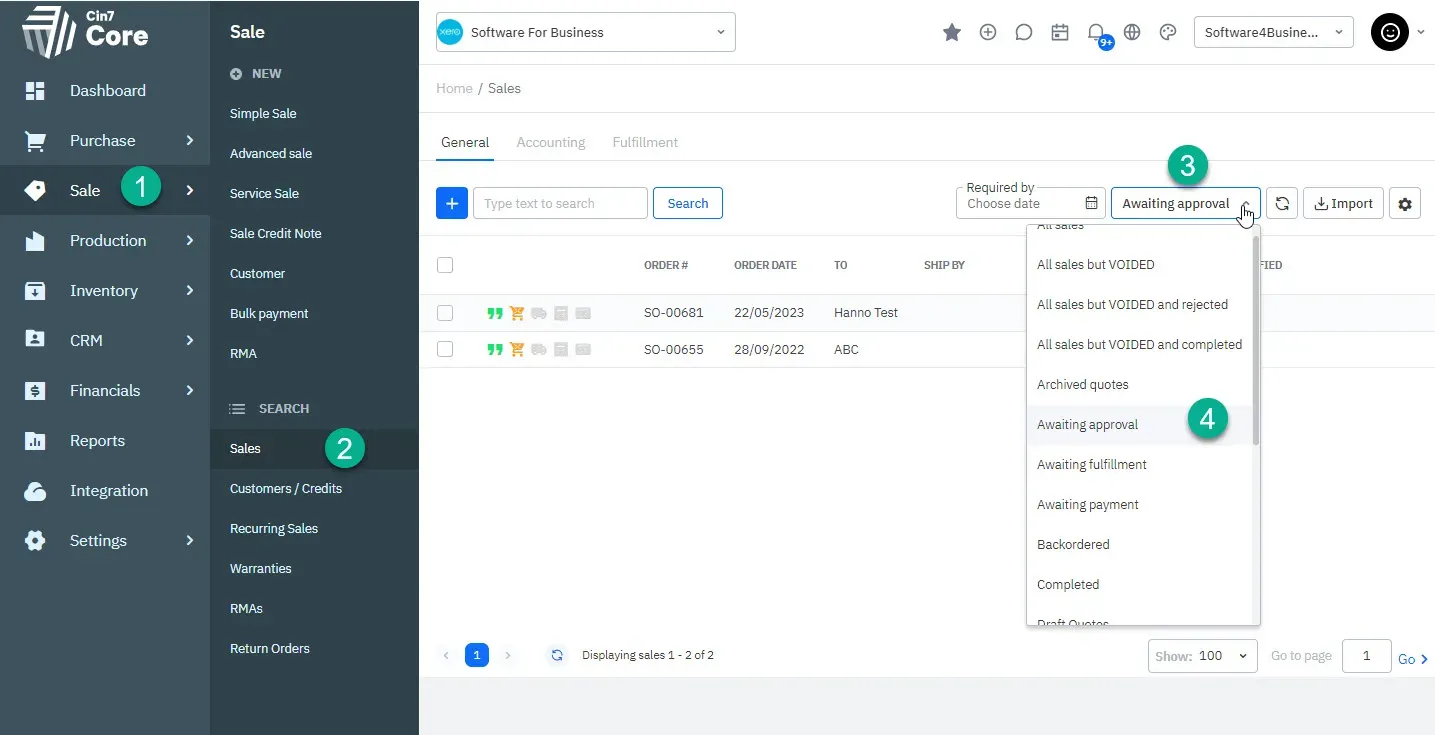
The functionality of this feature is simple yet robust. The ‘Awaiting Approval’ status can be selected from the status filter dropdown menu when examining your sales or purchase list. This addition significantly simplifies the tracking of your orders awaiting approval, thus enhancing your control over the sales and purchase processes.
Where the filter will be displayed exactly

The Cin7 Omni Experience – An Example Workflow
Utilizing ‘Awaiting Approval’ Status Filter in Real-time
To illustrate the practical application of this feature, consider this workflow scenario: When logged in with a limited user account, the creation of a Quote enables its Authorisation. However, an additional layer of approval is still required. This sales order or quote now becomes visible in the list of items requiring approval, making it easy for managers to swiftly locate and approve or reject orders.
Approve or Reject with Ease Using Cin7 Core
Cin7 Core’s comprehensive design also allows you to approve or reject an order using the mass action menu when listing orders. The API ensures that these processes run seamlessly, adding to the charm of this versatile feature.
Conclusion: Elevate Your Business with Cin7 Core
From Dear Cin7 to Cin7 Core: A Journey Towards Process Excellence
Our journey from Dear Systems to Cin7 Core is laden with innovations like the ‘Awaiting Approval’ status filter, tailored to smoothen your workflow. As we walk into the future together, we’re excited for the limitless possibilities Cin7 Core opens up for your business. Remember, the key to success lies in innovation and productivity.
Software4Business – Your Companion in the Digital Journey
For any assistance in your journey towards process efficiency, don’t hesitate to reach out to Software4Business. And, until our next update, continue to innovate and strive for efficiency.
For similar post related to Odoo, please go to our new Odoo site Prodoo
Cin7 Cin7 Core Cin7 Expert Consultants Cin7 Support Dear Expert Dear Inventory Dear Systems Filtering Xero inventory
HubSpot CRM and Cin7 Core: How to Easily Connect HubSpot with Dear Systems

It is common for us to be asked this question: “Does Cin7 Core work with HubSpot?”
Yes, Cin7 Core (aka Dear Systems) integrates with HubSpot.
How to Connect Dear Systems to HubSpot CRM
Are you tired of manually transferring data between your Dear Systems and HubSpot CRM? You’re in luck, because in just a few simple steps you can easily connect the two systems and streamline your data flow. Let’s get started!
What is HubSpot CRM?
HubSpot CRM is a best-in-class customer relationship management tool that can help your business with marketing, sales, and service delivery, enabling your business to grow without compromise.
Connecting Dear Systems to HubSpot CRM
To begin the integration, log in to your Dear Systems account and go to the Integrations tab. Search for HubSpot CRM and click on Connect. Make sure to have your HubSpot account open and select the correct account if you have more than one.
Enable Synchronization
Once you have clicked on Connect, you will be prompted to enable synchronization. This will allow you to update sales, products, and customers between the two systems. You can specify the direction of the updates, whether you want to import from or export to HubSpot. You can also choose to force updates on HubSpot entities. However, it is recommended to disable the force DEAR entity update setting to prevent errors.
Custom Field Linking
Dear Systems and HubSpot CRM custom fields can be linked to streamline your data flow. This integration can be easily managed within the Dear Systems integration tab.
Error Management
If any errors occur, don’t worry. Simply go to the log tab where you can download an Excel file and investigate potential issues.
Marketing Campaigns
With this integration, your marketing team can create targeted campaigns in HubSpot CRM based on customer data from Dear Systems. This will help improve lead generation and customer engagement.
Connect Today!
Now that you know how to connect Dear Systems to HubSpot CRM, what are you waiting for? Take your business to the next level with this streamlined integration.
Support
If you run into any issues with the integration or have any questions, don’t hesitate to reach out to our support team here at Software4Business.
At Software4Business, we’re here to help you get the most out of your systems and optimize your business processes.
Subscribe to our Youtube channel for more tips and tutorials or sign up for our newsletter today or simple just contact Software4Business support.
Get Real Help with one of our Expert Consultants
Software4Business is a consulting firm specializing in Cin7 and Cloud CRM, two of the most powerful and flexible business management systems available.
With extensive experience and expertise in both systems, the team at Software4Business can help businesses of all sizes streamline their operations and improve your bottom line.
Whether you are looking to implement a new business management system, integrate with other platforms, or simply need assistance with a specific feature, Software4Business has the expertise to help you succeed.
Their team of experienced consultants can help you navigate the complex world of inventory management and provide tailored solutions that meet your specific needs.
If you are interested in learning more about how Cin7 Omni or Core and HubSpot CRM can help you grow your business, or if you need assistance with implementation or integration, don’t hesitate to reach out to Software4Business. With our 20+ years of experience and commitment to customer success, we are the perfect partner to help you take your business to the next level.
So if you’re looking for a reliable, experienced consulting firm to help you get the most out of your investment in Cin7 Omni or Core, look no further than Software4Business.
Contact us today to learn more about how they can help you achieve your goals.
Related questions:
You might also like:
Does Cin7 Core work with Shopify? How do I connect my Cin7 Core to Shopify?
Cin7 Unifies its Brand with Rebranding Effort
Customer engagement, data flow, and support team synchronization. Targeted campaigns and more.

Important Brand Realignment
We are excited to share a significant update regarding our product lineup under a unified brand, Cin7.
This rebranding stems from Cin7's acquisition of DEAR Systems and Orderhive back in 2021.
Cin7 is now consolidating into a single entity with three products designed for specific needs.
Rest assured, this change won't disrupt your product use or our relationship at Software4Business.
We're dedicated to empowering you, our valued product sellers, to expand your reach and business.

It is common for us to be asked this question: “Does Cin7 work with Shopify?”
Yes, Cin7 Core (aka Dear Systems), Cin7 Omni, and Cin7 Orderhive work with Shopify.
Cin7 is an all-in-one inventory management platform that integrates with Shopify to provide a seamless and streamlined experience for online retailers.
Cin7 Core is the backbone of the Cin7 products, providing a centralized platform to manage inventory, purchase orders, sales, and shipping across multiple channels. Cin7 is simply, really good.
Cin7 Omni expands on the core functionality by adding support for omnichannel sales, allowing retailers to manage sales across multiple sales channels from one central platform.
Cin7 Orderhive, on the other hand, is a standalone app that integrates with Shopify to manage order fulfillment. With Cin7 Orderhive, retailers can automate order processing, manage inventory levels, and monitor shipping information in real-time. This integration allows retailers to manage their entire order process from a single platform, reducing manual work and minimizing errors.
Key Benefits for connecting with Shopify are:
One of the key benefits of integrating Cin7 with Shopify is the ability to keep inventory levels up-to-date across all sales channels in real-time. This helps to ensure that retailers never oversell products, and can reduce the risk of stockouts. Additionally, the integration allows you as a retailers to automate order processing, saving time and reducing manual work.
Another benefit of Cin7 is its robust reporting and analytics capabilities. Retailers can use the platform to gain insights into sales trends, inventory levels, and shipping information, helping you to make informed business decisions. With Cin7, retailers can also create custom reports, allowing you to track the metrics that matter most to your business.
In conclusion, all these products are powerful business software that can help online retailers using e-commerce platforms to streamline your operations and grow your business. With its integration with Shopify, Cin7 provides a seamless and centralized platform to manage inventory, sales, and shipping, saving time, reducing manual work, and minimizing errors. And that is worth a lot in todays online business environment.
How to Connect with Shopify
Connecting the two systems can either be done through Dear or Shopify. The settings configuration is done in DEAR.
Following this easy step-by-step guide below to help you set up this integration:
- Set up your Account: Create an account on Dear Systems, please click here to get a month free trial, if you do not have an Account Setup already.
- Shopify login: Log in to your online store account and go to the app store. Search for the “Dear Inventory” app and install it.
In the future (after June 2023 -Search for Cin7 Core if Dear Inventory is not showing anything anymore)
- Install the Cin7 Core (Or Dear Inventory) app in Shopify
- After installation, you will be directed to the Cin7 Integrations Shopify dashboard. From there, you will need to configure the new connection.
- Once your setup is done, sync the items from Dear to Shopify or from Shopify into Dear.
- To download products from Shopify into DEAR simply click the “Catalog” button and click on the “Download” button.
- Once products have been created, synced and listed, you can start importing new orders from Shopify into Cin7 Core.
- To import products, go to “Pending Order” in the Shopify Dear Integration interface and click on > “Load orders”. New orders will now be listed in the pending order grid.
- To process the orders into your sales process flow, click on the Process button.
- To see import orders, you can view them in the go to “Sales” > “Search sales”. The new sales will be the latest orders added.
- To keep your product and order information up-to-date, the order import process is automated. No manual intervention is required.
- If you want to integrate your shipping, we suggest you set up shipping rates in Shopify. Go to “Settings” > “Shipping and delivery” in the Shopify Admin to set up your shipping rates.
- Finally, to take advantage of the full range of features offered by the Cin7 products, you may want to set up custom integrations with other platforms and services. For more information on custom integrations, consult the Cin7 Core documentation or contact Software4Business support.
Shopify settings Cin7:
Change as follow:
General Setup
Customer Price Tiers
Account and Cash
Invoice & Product List
The bulk listing feature will also let you know if the products meet the minimum required standards for it to be listed in Shopify.

Get Real Help with one of our Expert Consultants
Software4Business is a consulting firm specializing in Cin7 Omni and Core, two of the most powerful and flexible inventory management system available. With extensive experience and expertise in both systems, the team at Software4Business can help businesses of all sizes streamline their operations and improve your bottom line.
Whether you are looking to implement a new inventory management system, integrate with other platforms, or simply need assistance with a specific feature, Software4Business has the expertise to help you succeed. Their team of experienced consultants can help you navigate the complex world of inventory management and provide tailored solutions that meet your specific needs.
If you are interested in learning more about how Cin7 Omni and Core can help you grow your business, or if you need assistance with implementation or integration, don’t hesitate to reach out to Software4Business. With our years of experience and commitment to customer success, we are the perfect partner to help you take your business to the next level.
So if you’re looking for a reliable, experienced consulting firm to help you get the most out of your investment in Cin7 Omni or Core, look no further than Software4Business.
Contact us today to learn more about how they can help you achieve your goals.
You might also like:
Does Cin7 work with Shopify?
How do I connect my Cin7 to Shopify? How do I map a product on Cin7 Shopify?
Cin7 Sales Order Process Workflow
Valuable features to make your life easier with Cin7 Inventory. Increase efficiency & save time.

We offer Cin7 Support. Contact us for a quote.
Not that simple to understand
The Cin7 Orders screen displays sales orders that need to be picked or packed individually or in groups.
Numbers to guide you
Nevertheless, it’s not as simple as you might think. Knowing exactly what steps to take when you open a Cin7 sales order can be more challenging.
In the new system, they do provide you with numbers, so that you can follow them.
I would suggest, rather than focusing on the numbers, you should learn how to use the interface in general, as you may be confused if you don’t.
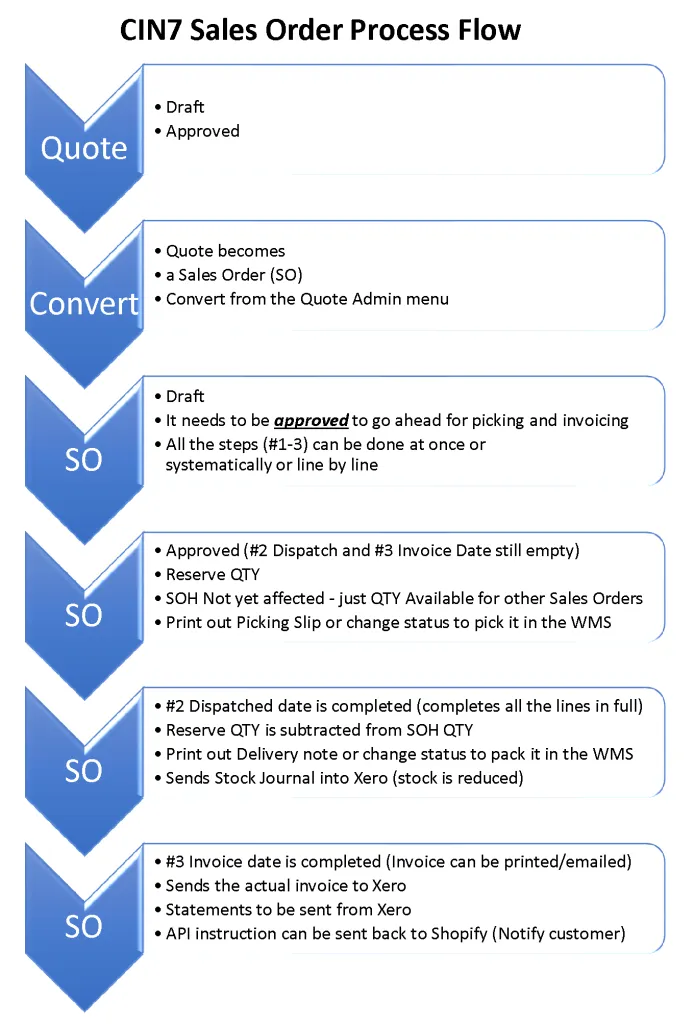
As a result, I have designed this workflow to explain how to move from a sales quote to a draft sales order and eventually a sales invoice.
You should keep in mind…that in the standard workflow, once approved the button names change from “Approve & Email” to “Save & Email”.
Apart from understanding little quirky things like that, it is also important to understand that there are statuses that can trigger interaction with external applications like Shopify or the Cin7 WMS.
Basically, stages are used when sales orders move from one stage to the next until they are fully completed.
When is what updated
Cin7 Support – Stock Management
You might also like these Cin7 Support articles I wrote
Here is a Video that might be of help.
Cin7 Process Flow – Cin7 Support.
Top Xero Inventory Add-in
Cin7 Expert Consultants, get the best Cin7 Help and Cin7 Support. Use the best Inventory app!

What type of software is Xero?
Looking to find answers about Xero Inventory management?
When it comes to accounting, Xero is exceptional online accounting software. In fact, the Xero mantra is synonymous with Xero and beautiful business. Of course, Xero is extremely powerful in terms of features and logic for calculating the GST, cost of goods sold, tracking categories, purchase order control, sales, and invoices, not to mention the excellent features for bank reconciliation and its many integration options.

Primarily Accounting Software
But it must be kept in mind that Xero is primarily an accounting software that integrates with other software via API. This allows development teams and organisations around the world to focus on their niche and do it properly without trying to solve all the problems in one solution. Have you ever heard of SAP, or Oracle? Those giants are slow to move and labour intensive to feed every day, but yes they can do quite a lot and can deal with large organisations with complex and/or unique requirements.
Inventory in Xero?
Small business owners far and wide, potentially even you, are or will be trying to use Xero inventory to run your business. Our customers typically contact us to find out how they can use Xero for accounting and inventory tracking purposes, and then once they made a little progress they run into a few roadblocks like e-commerce integration, payment reconciliation, unique pricing, stock code and description management, customer-specific pricing and stock take issues to name but a few.
Growing industry
More and more retailers, wholesaler and distribution companies, especially as they grow, get to grips as to how important stock control and real time tracking is, but often fails to understand where, if at all, their Xero account is capable of handling their various inventory management requirements.
Managers know what they want.
Now, we acknowledge that Xero inventory management is a thing, but it has limited capabilities, especially when comparing Xero inventory management with the likes of Dear Inventory, for example. Xero inventory management, unfortunately, lacks all the OOMPH and more tricky but necessary components business managers want.
Consider stock takes and inventory adjustments for example, or purchase orders with batch numbers or expiry dates. What about multi-location and tracking serial numbers. Not to even mention barcode scanning stock in and out or selling those items via eBay, Amazon or Shopify and let it automatically link to Courier companies when it needs to be delivered. So in short, if you ever even thought about using barcode scanners in your business, then Xero must make room for a specialised add-on module. Oh, and don’t even think about running a warehouse full of stock with just Xero. No.
Not doing stock control is dangerous.
Stock Control is a specialised task, and it should not be limited to rights reserved Xero and beautiful excel files. That is just plain dangerous as many Excel versions will be floating around and it will end up being 20 times more labour intensive than a proper solution, guaranteed. In the realm of specialized cloud-based systems, Xero is an amazing accounting software program, but there is a reason it promotes its accounting functionality. You need something better to manage your stock, and online sales.
Beautiful Dear Inventory
Dear Inventory however and beautiful business are trademarks, not just for Xero anymore, but for almost everyone who uses Dear. People swear by the amazing integration capabilities of Dear Inventory and Xero (or Quickbooks) and how their new business software (aka Dear Inventory) and the way they do business is not limiting anymore. Rather Dear Inventory allows and promotes small businesses to grow exponentially in sales and revenue into large corporations and even then, can still cater for complex scenarios. We have clients with annual revenue of over 100 million dollars running on Dear Inventory.
Why you should not really bother with inventory in Xero?
So even though Xero is great for real time accounting software with simple steps to generate invoices, for example, it really offers little when it comes to inventory management. Software4Business recommend that you start using Dear Systems as your business operating software as it fully integrates back into Xero anyway. This will give you the best of both worlds. Best in accounting and best in stock control. Give us a call, we work with Dear Inventory all day, every day and have converted and implemented Dear projects for many businesses in Australia.
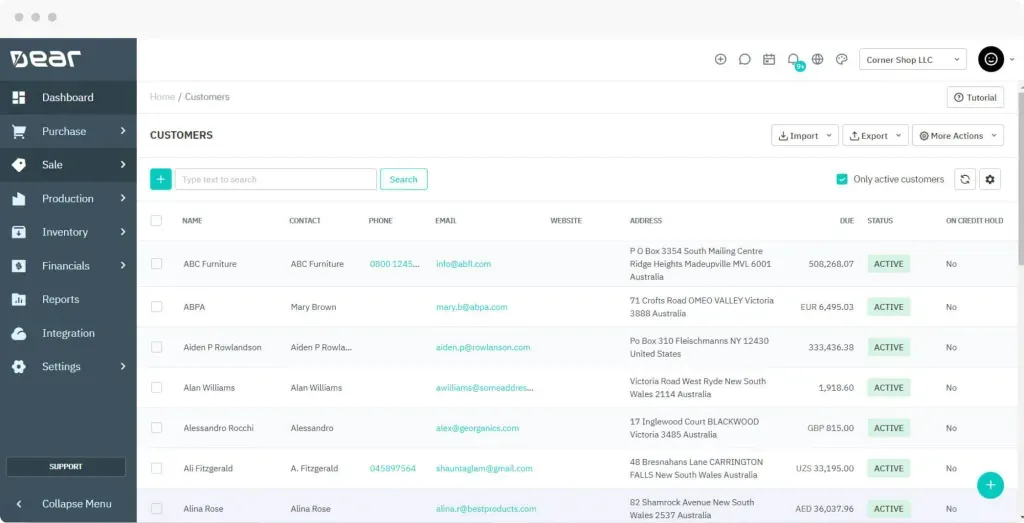
Efficiently oversee customers, enhance relationships, and drive sales growth with streamlined strategies.
More links
Dear Expert Dear Inventory Dear Systems Xero Xero inventory Xero Inventory mangement
More Details
Dear Systems Training #1

How to setup product feeds between Shopify or WooCommerce and Dear Systems
- Setting to update Category / Brand <-> Dear / WooCommerce
- Setting to change QTY globally or individually
- Never change too much in WooCommerce (Dear will handle that)
- Descriptions can be pulled from WooCommerce and update Dear
- Leave the pretty interface changes and images for the web-developer
Dear’s Product Descriptions and SKUs can be changed but needs to be manually synced to WooCommerce.
- Via the item self
- Via the integration interface
- Qty and Price changes happens automatically
- Push Qty and Price changes to WooCommerce
The benefits of integrating Dear Systems with WooCommerce and/or Shopify
- Stock levels are automatically updated from DEAR systems to WooCommerce and/or Shopify
- DEAR inventory then allows online orders to be Picked, Packed, Shipped and Fulfilled
- Order information can be synced with your shipment applications to create manifest
- Dear inventory then sync inventory costs and movements to Xero or Quickbooks
- This means one integrated/centralised inventory management to manage all channels of sales
A list of the types of data that are exchanged between Dear Systems and Shopify and/or WooCommerce
- Downwards -> Orders and additional charges
- Both ways of making payments (setting)
- Both ways of new products (setting)
- Upwards -> DEAR to WooCommerce/Shopify stock quantities
- Downwards -> Customers
An example of what happens when you integrate
- The existing products can be downloaded from WooCommerce or Shopify, or listed/uploaded from DEAR
- Each sale from WooCommerce/Shopify will first go into Pending Sales, where stocks will be allocated
- Consolidation of online sales for the day can be enabled (settings)
- Changes to stock levels are pushed from DEAR SYSTEMS back to WooCommerce / Shopify
It is important to take note of what does not integrate
- Stock quantities are not imported automatically from WooCommerce to DEAR and need to be set in DEAR.
- It is recommended to ensure the quantities are the same on both platforms before you start.
Other useful links to CIN7 and DEAR systems training you might like:
Dear Systems Academy
Systems Integration
Xero
Inventory Systems
Dear
WooCommerce Xero
Shopify
Systems Xero Mangement
Inventory
Services we offer:
Software by Business Needs

CRM Software
1. Software research / demos


Implementations
42 Cin7

Users Trained
183 Cin7

Integrations Set Up
112 Cin7

Other Software
FOLLOW US ON:
Let's Connect
Get in touch with your customers to provide them with better service. You can modify the form fields to gather more precise information.